
Using Adobe Illustrator for Universal Laser Cutter + Converting Images
Setting up your Artboard
Open illustrator, click on “New File” and set the size of the artboard to the size of the wood piece you are going to cut. On the Universal laser cutter, the maximum size is 32” by 18”, however, the material that EPS uses is 15” by 11”.
Using the Shape Tools in Illustrator to Create Vector Designs for Cutting
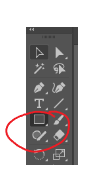
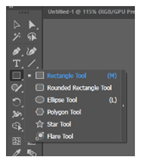
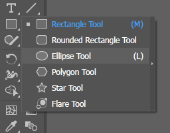
When you have your artboard set up, click on the shape tool on the left hand side of the screen to make your shape. The default is a rectangle tool, but if you right click on it, it will open up an options bar for other shapes. Select your chosen shape.
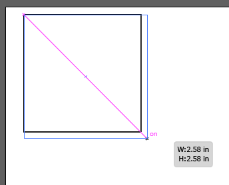
Click and drag your cursor on the screen in order to make your shape. Additionally, if you press down shift and alt at the same time, it will size your shape from the center to keep the proportions the same. You can also see the size of the shape as you are dragging it (width x height).
If you would like to change the size of your shape later on, you may either do this by dragging the corner/edge of your shape until you get the dimensions you want (while keeping shift + alt pressed down to keep the proportions the same), or by clicking on the “W” and “H” boxes at the top of the screen and typing in the dimensions you would like.
The button boxed in red will also constrain your proportions to the same size if you click on it before typing into the width and height input boxes.

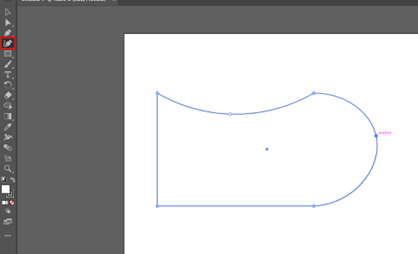
For some easy custom shapes, you may also choose to use the curvature tool to curve your lines around on your shape like below.
Once you have your shape made and it has the dimensions you want, you will need to change the fill and stroke of the shape to get it ready for laser cutting. For the Universal laser cutter, the cut lines (called Vector for Cutting) need to be coloured RGB red, and the stroke (line) needs to be size 0.072 in.
You can change all of these settings in the bar at the top of the screen if your shape is selected. Change the fill to no fill if there is a fill,
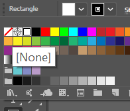
change the stroke to RGB red,
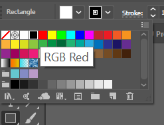
and size it to 0.072 in.

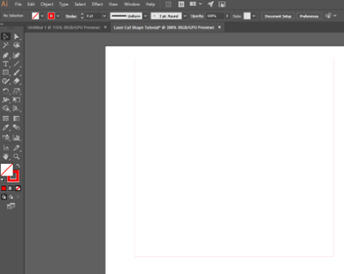
Additionally, make sure that your stroke alignment is centered. Your design will not cut properly if your stroke line is not centered, so please double check this if issues arise. You can tell if your stroke is centered by checking if the path line goes through the middle of the object.
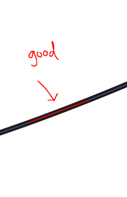
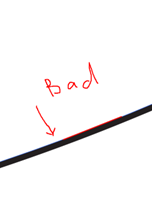
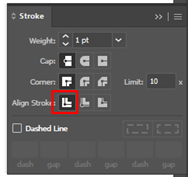
If your stroke alignment is not like the good example, you can adjust it by going to Window -> Stroke and aligning the stroke to the center like in the below example.
Making Holes
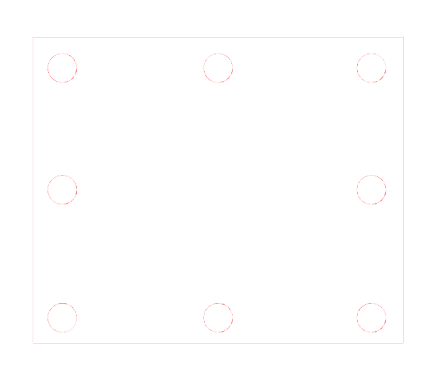
If you want to make holes for your wires and circuits to go through (or if you’re making a sign or a frame that needs cut-outs), right click on the shape tool and select the ellipse, and follow the same process as the above rectangle (no fill, RGB red stroke, stroke size 0.072). Place your ellipse on your rectangle where you want it to be cut out.
Converting Clipart/Images to Vector Images
If you don’t want to use shapes to design your own image to be laser cut, you can also find images online to convert to vector cut lines.
First, find an image that you would like. This tutorial is going to use a Seahawks logo for its example. For the best quality cut, you may look for images that are already black and white, or already vector images. Some search terms that may help are “black and white”, “vector”, “SVG file”, and “Royalty Free”.
Save the image to a folder on your computer, then go to File à Place and find the image you saved to put on your Illustrator artboard.
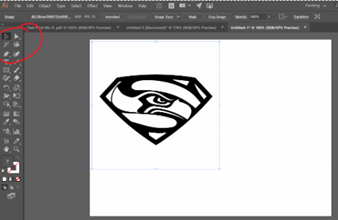
When you paste your image, it may need to be resized and/or cropped to fit the artboard. Do any cropping you may need to do first. At the top of your screen, click on the button that says “Crop Image” and crop it as close to the image as you can. Then, click on the “Apply” button In Illustrator, or hit enter on your keyboard.
Afterwards, you can resize the image to fit onto your artboard. Remember, if you hold down Shift and Alt on your keyboard while you resize your image, it will resize from the center and keep the proportions the same so it doesn’t look warped.
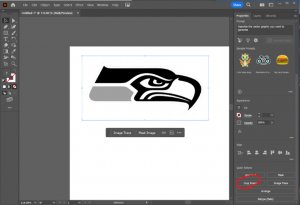
Now, in order to convert the image to vector lines, you will need to trace the image and expand it.
Select the image and look for a button in your properties panel (the location of this may vary depending on your illustrator window set up) that says “Image Trace”. Click on this button, then “[Default]” from the pop up menu to trace the image.

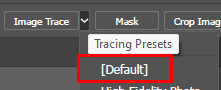
Afterwards, click on the little square button in your properties panel that looks like a menu. This will open the image trace panel for more options.
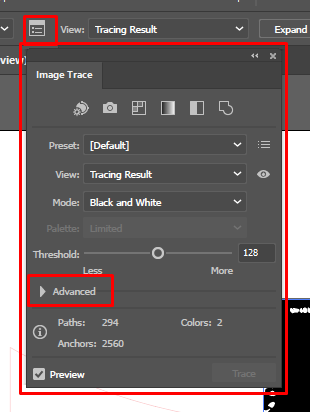
Click on the arrow next to “Advanced” and checkmark the box that says “Ignore White” to ensure that you don’t have redundant shapes/colors impacting your cut. You may now close this window.
Now, in order to make vector lines, you will need to select your image again and then click on the button that says “Expand”. This will be in the same properties bar you used to trace the image. When you click on it, you will see blue lines appear around the black parts of your image.

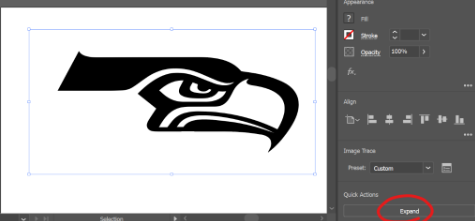
The stroke and fill of the expanded image will now need to be edited in order for the laser cutter to find and understand them. First, change the fill colour (first coloured square with a drop down menu at the top of the page) to “No Fill”. No fill will look like a white square with a red line diagonally through it. This will take away the black in the image and leave only the lines.
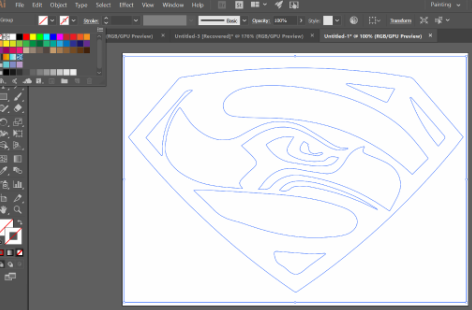
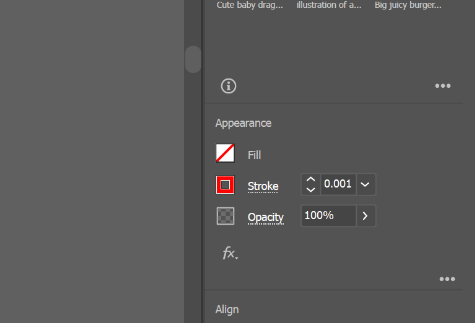
Now, the stroke (or outline) colour should be changed to RGB Red. Click on the dropdown menu for the stroke (next to the fill square) and click on RGB Red. You will need to change the stroke size to 0.072 pt like in the tutorial above as well. It may say 0pt when you click enter, but as long as you can see your vector lines when you save your PDF, they are there.
The Fill, Stroke, and Stroke Size in your properties panel should look like this when you are done.
Your image should now look something like this;
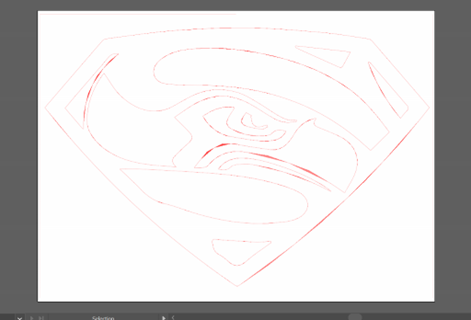
You may notice some thicker-looking lines around some of the vector lines. These should disappear when you save it as a PDF.
You are now ready to save it as a PDF! You may want to check the outlines in View--> Outline first to make sure you don't need to delete any errant anchor points. This is what mine looks like in Outline view:
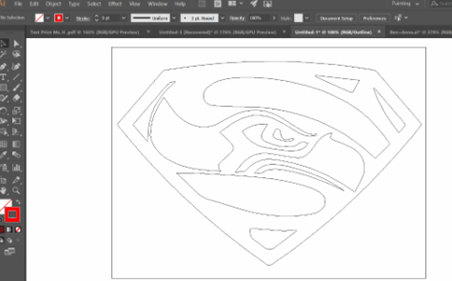
There are no weird lines are errant anchor points, so we are ready to save it and send it to the laser cutter! Go back to the View option and click on GPU Preview to bring the view back to what it was before.
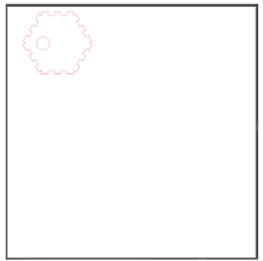
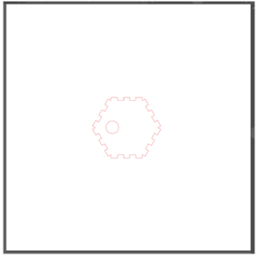
To make efficient use of our cardboard and wood materials, please place your image at the top left corner of your page if there is a lot of white space.
Like the first image, and not the second image.
Converting Text to Etch (Raster) Lines on Illustrator
If you wish to have text on your design, you may also use the type tool before saving. You are able to type your own letters, words, and phrases, and then convert them into your own etch paths. In order to do this, click the button on your toolbar that looks like a ‘T’.
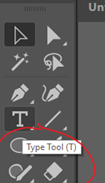
If you right click on this button, you will see many options of different types of text/type designs you can play with. We're going to use the basic type option for this tutorial, but play around with the other options and see what they can do!
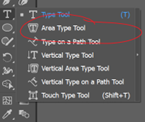
Click on the first option, the Type Tool. Then click on your artboard and some text will appear that you can delete to type your own letter, word, phrase.
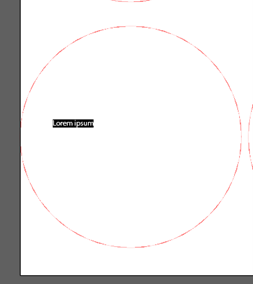
You will need to remain in the Type Tool any time you want to edit what the text says. You can also edit the font, the alignment, font size, etc. similar to what you would do in Word. Play with these options, they can usually be found at the top of your screen.

When you have your text, font, and size the way you would like it, click back to the Selection tool (the cursor on the top of the options panel at the left of your screen) to move and resize your text. Move your text where you would like it to be etched on your page.
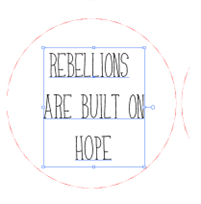
Select the text, and then click on "Type" at the top of the page, and select "Create Outlines" to make paths on your text. Again, you do not need to change the stroke or fill at all, just leave the settings as they appear when you click on it.
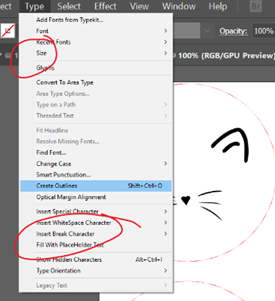
Your text is now ready to be laser etched! If you would like, you can also combine the clipart and the type tutorials above and have a design with both converted image and text.
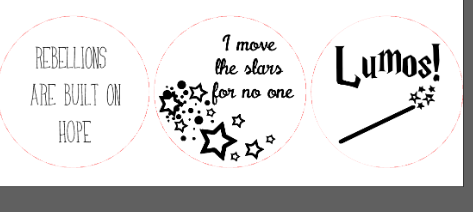
Your are now ready to send your file (with text) to Illustrator!

