Making a T-Shirt
In addition to sticker vinyl, we also have Heat Transfer Vinyl (or HTV) and a t-shirt press in the MS Makerspace! If you bring in your own t-shirt (or tote bag, piece of fabric, pillow cover, most anything that is made of cotton fibers!), you can design and make something awesome with the HTV! This tutorial will show you how to do that.
Setting up your artboard in Illustrator:
The HTV rolls are the same width as the sticker vinyl, so your artboard in Illustrator will need to be set up the same way:
- Width: 340 mm
- Length: variable, measure the item you want to put HTV on and make the length the size you need to fit your design.
- Color mode: RGB color
Your document set-up panel should look something like this:
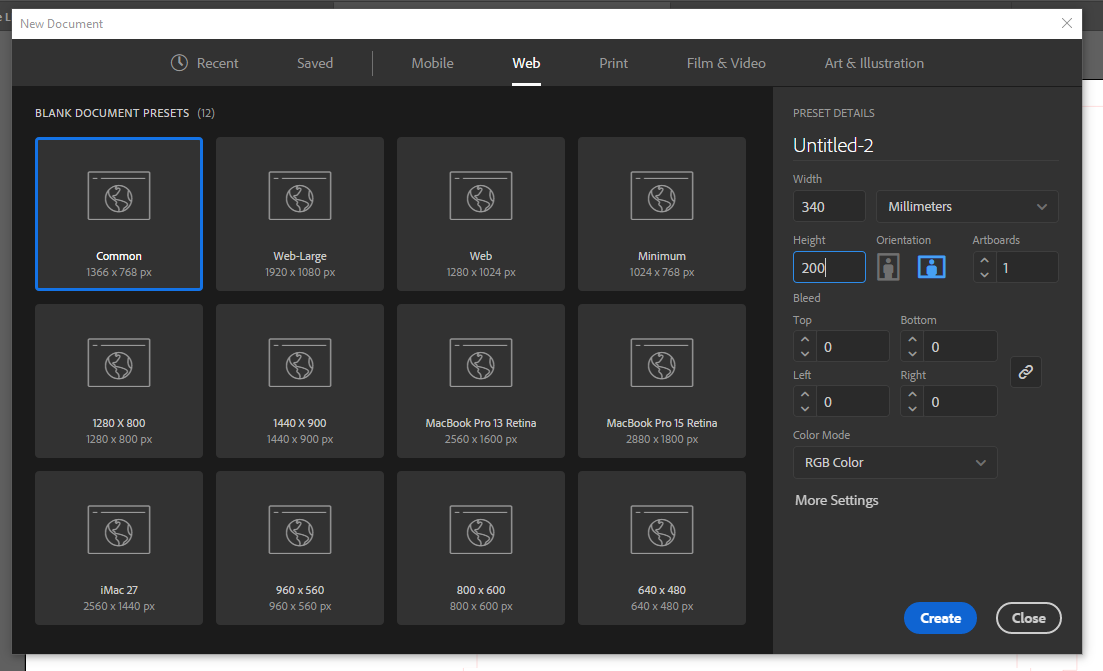
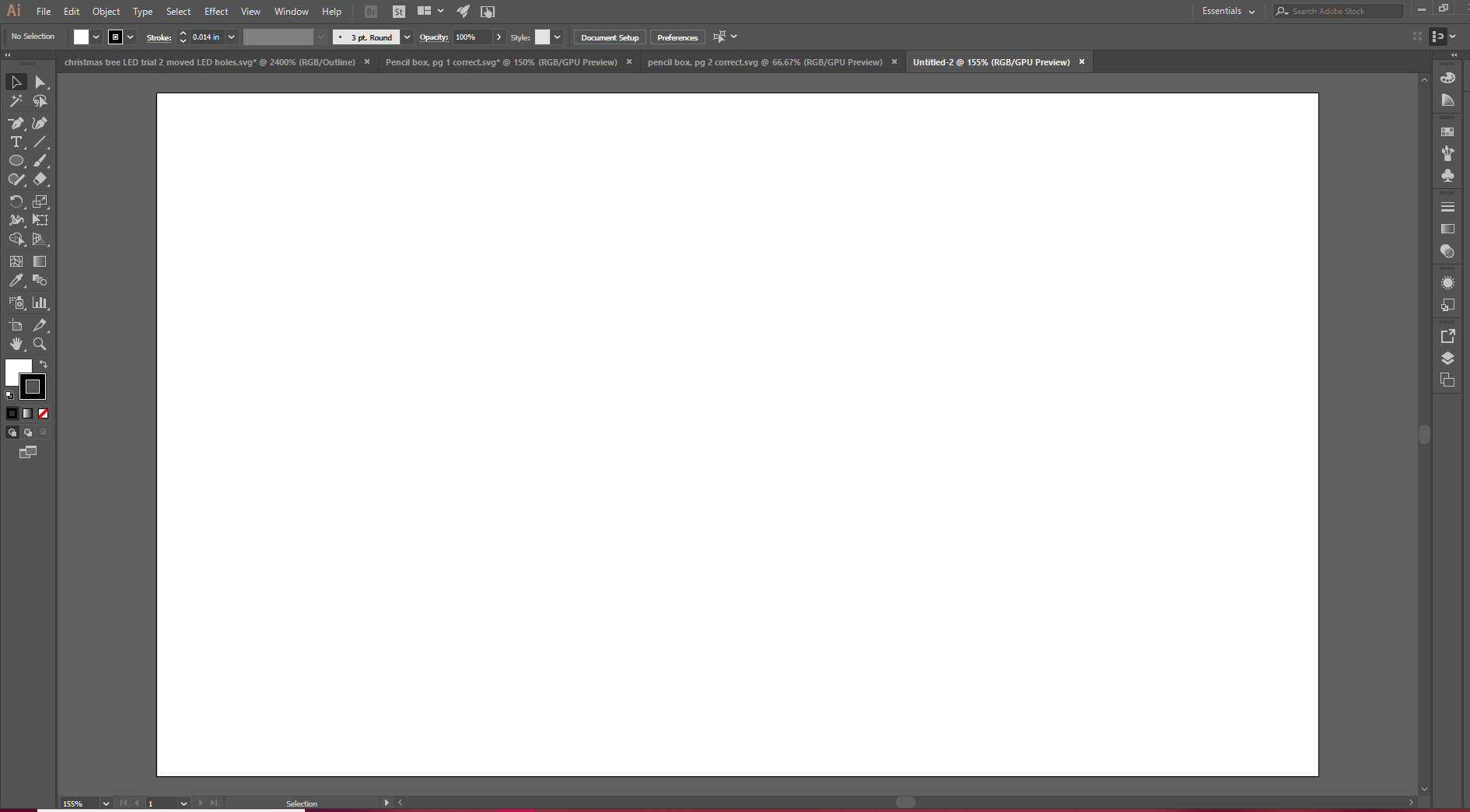
And since I want my design to be around 200 mm tall, my artboard will look something like this:
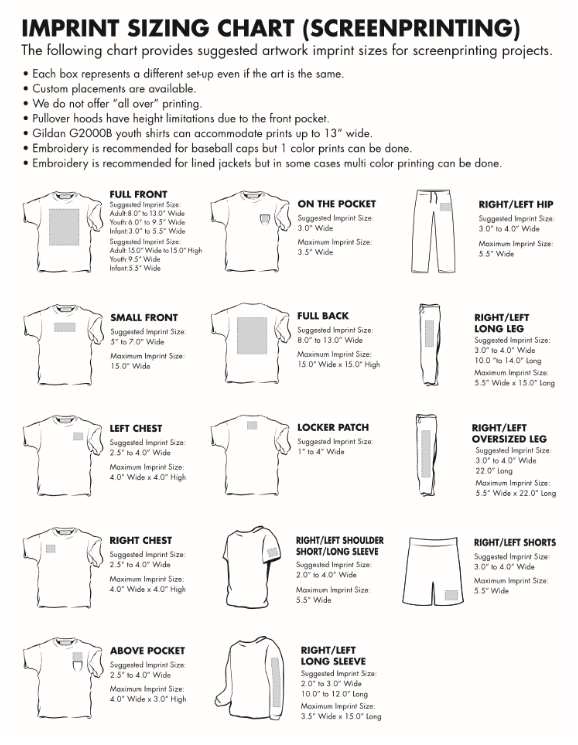
Now you are ready to design! If you need additional guidance on placement of HTV designs on t-shirts, here is a handy little guide to help you decide how large and where to place them:
Preparing your Design:
To prepare your design, you will follow the same procedure(s) as are described/outlined in the other two vinyl cutting tutorials. Go back to those if you need to know more specifics of how to image trace, use shapes, and use text in Illustrator. For this tutorial, I have already made the design I want for my Thanksgiving shirts:
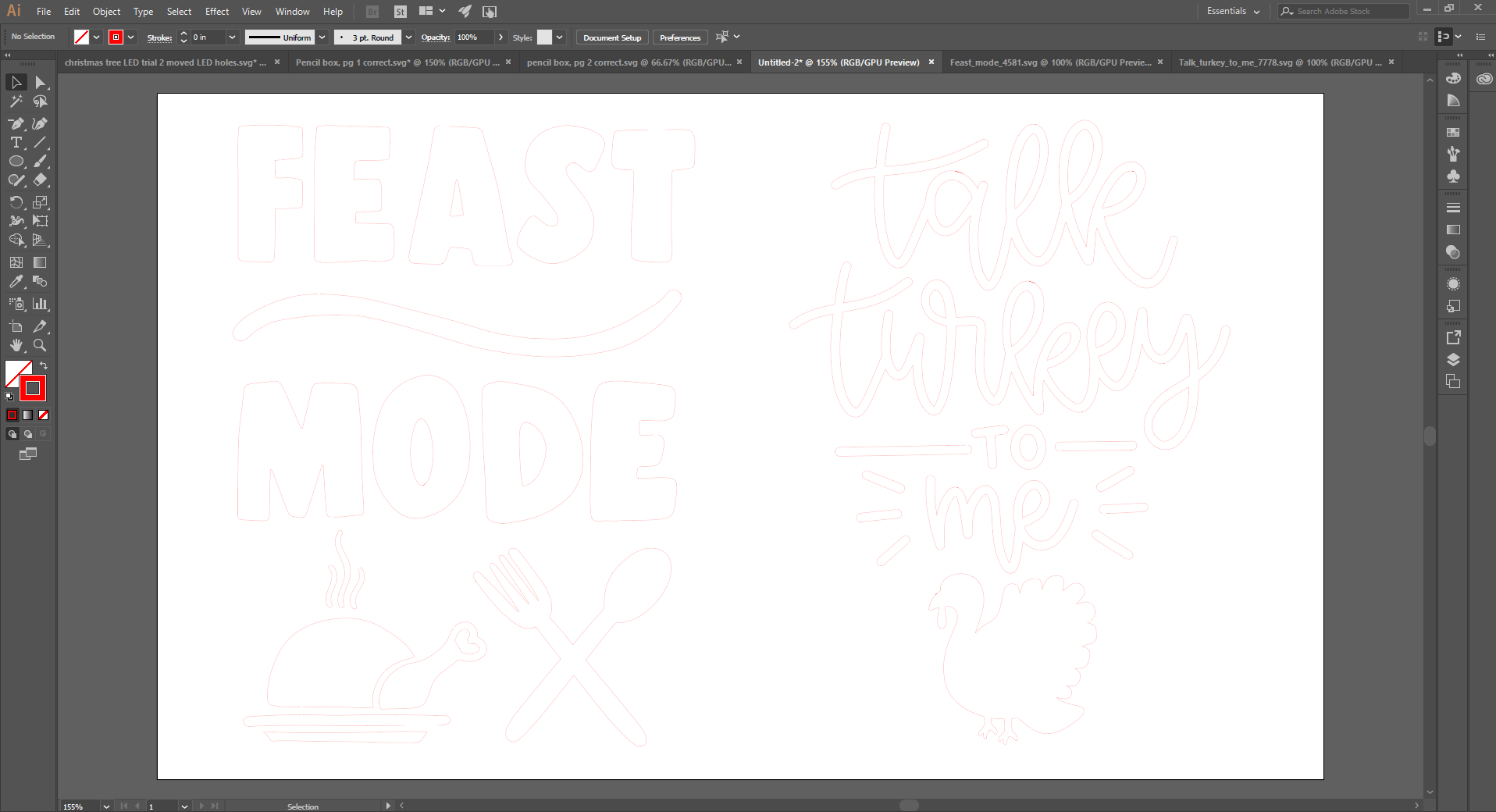
If I was making a sticker with these, I would be ready to go. But the main difference between HTV and sticker vinyl (besides the adhesive on HTV being activated by heat) is the vinyl is on the roll with the adhesive side facing up, so that means we have to mirror-image our designs so they won't end up backwards on our item we'll iron it on to.
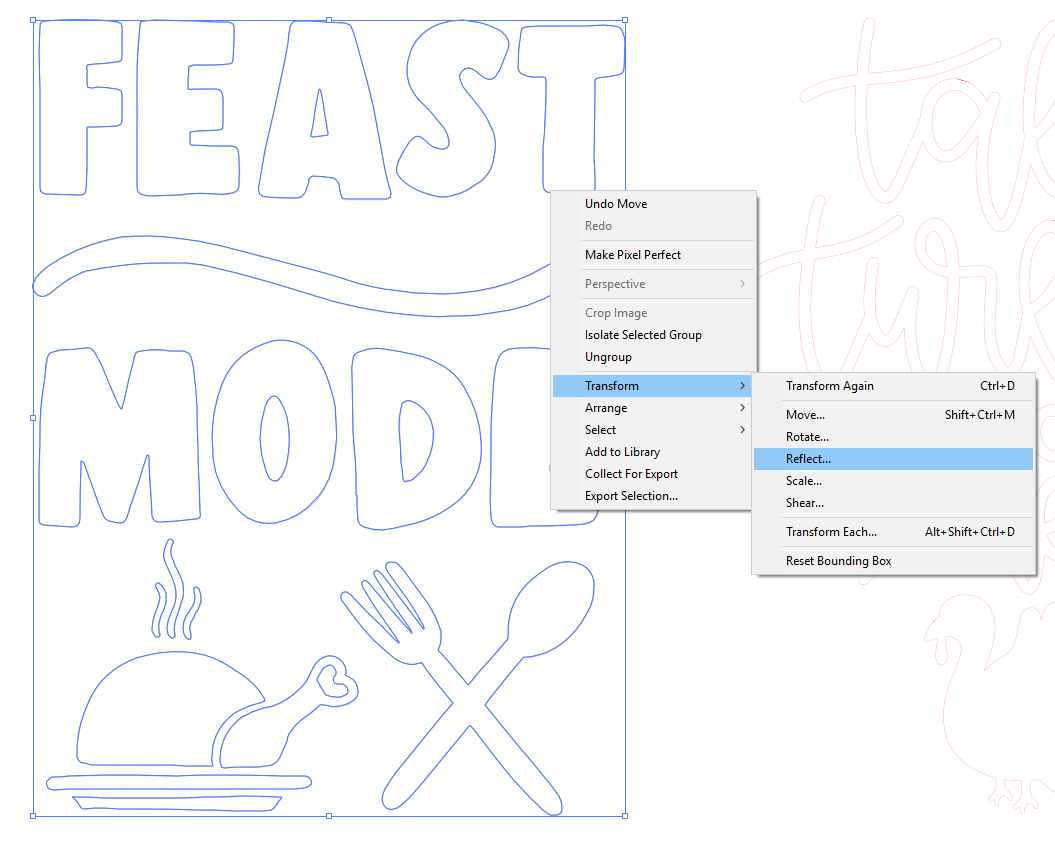
To flip the image around, we need to right-click on each image, open the Transform menu, and select "Reflect."
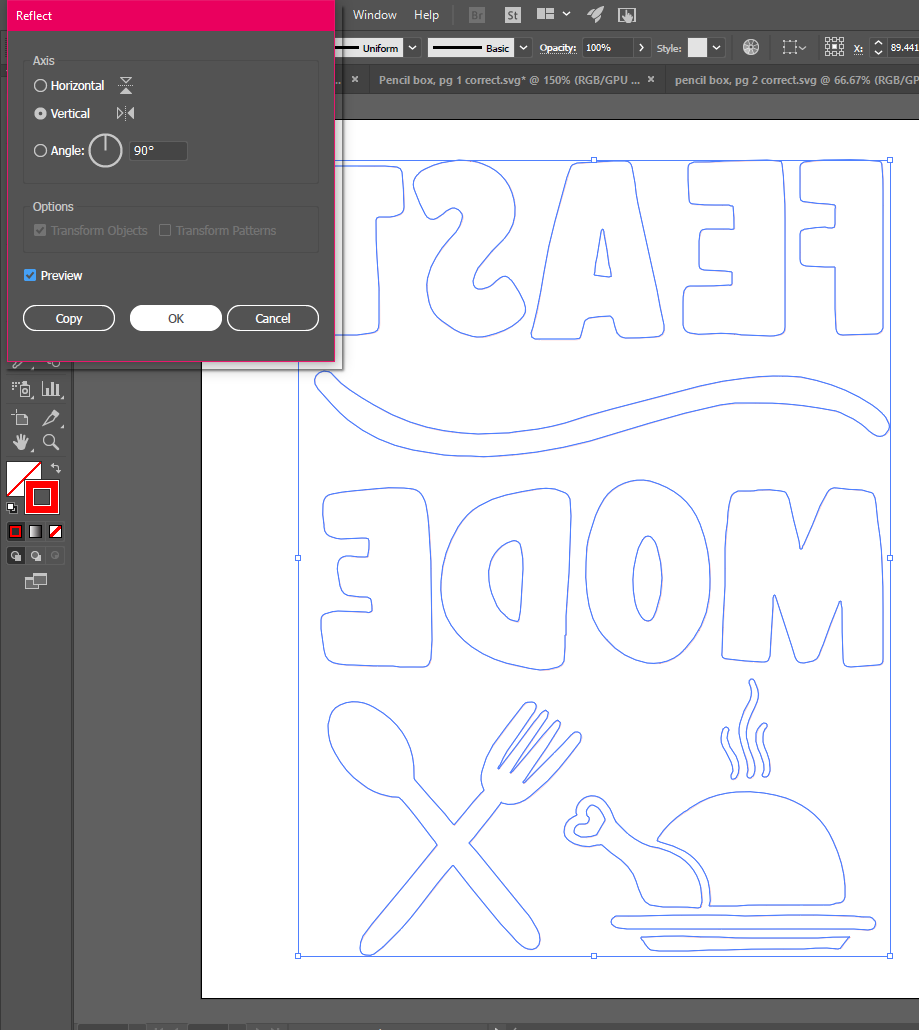
This will open up the Reflect panel. Make sure the "Vertical" option is selected, and if you click in the "Preview" box it will show you what the reflected image will look like when you're done. Once you are satisfied with how it looks, click "OK."
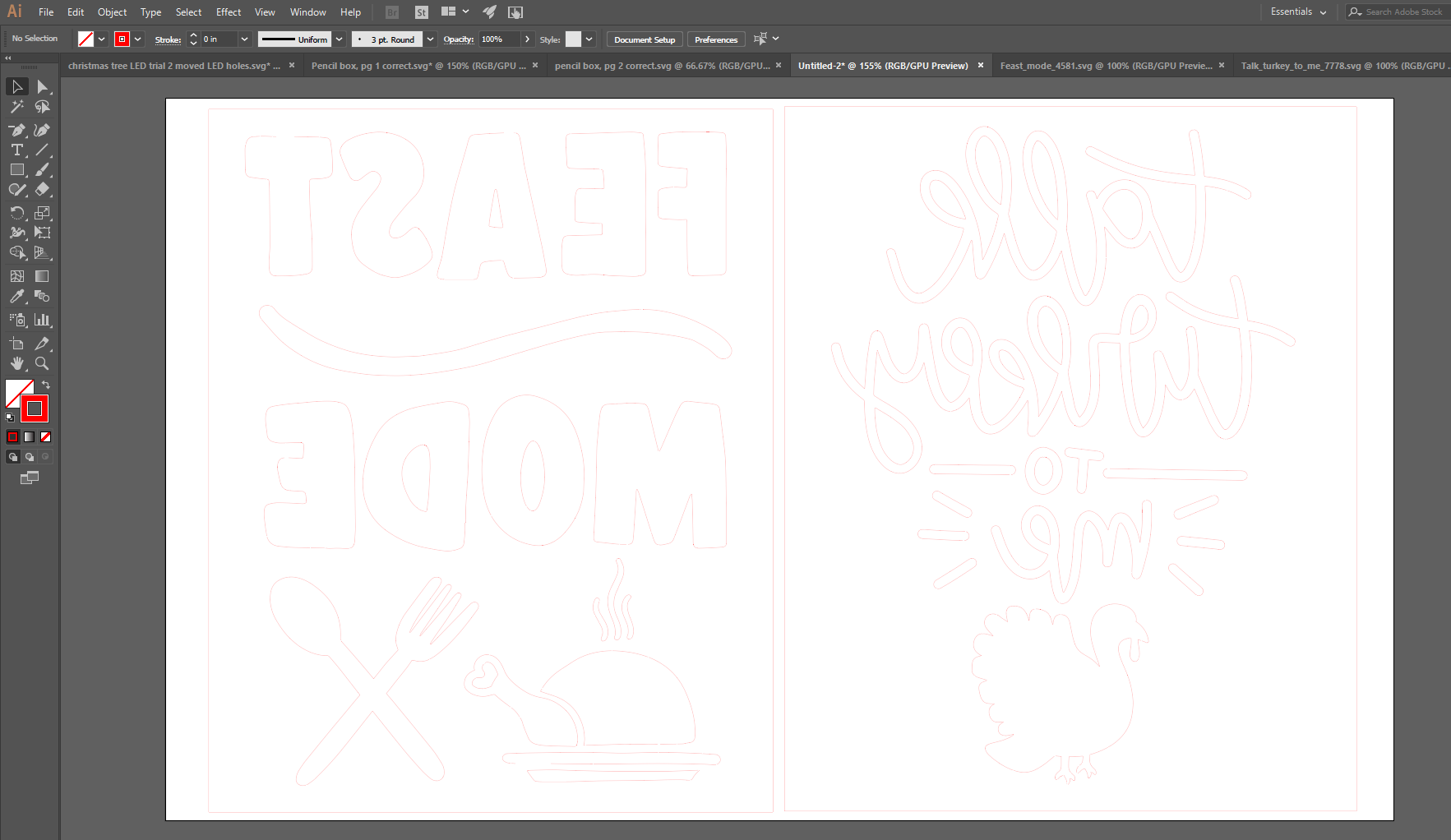
And that's it! Make sure you reflect all of the images, text, shapes, etc. in your design, and you're ready to send it to the New Vinyl Dropbox (Also go back to look at the previous tutorials for these instructions) and cut out your vinyl! My completed images look like this:
Cutting and Pressing Your HTV Designs:
Once you have saved a PDF of your designs in the New Vinyl Dropbox, you're ready to choose your vinyl and cut it out!
There are many colors of HTV in the makerspace for you to choose from. The differences between HTV and sticker vinyl are:
- Does not have holes punched down the sides
- Already has "transfer tape" applied (the shiny side)
- The adhesive is activated by heat
Make sure you are choosing the correct type of vinyl before cutting!
Turn on the heat press before you cut your design, so it's ready to go once you've finished. It should heat up to approximately 320 degrees.
Once you have chosen your vinyl, load it into the machine the same way as with sticker vinyl, just make sure the non-shiny side is facing up (this is the vinyl that we want to actually cut).
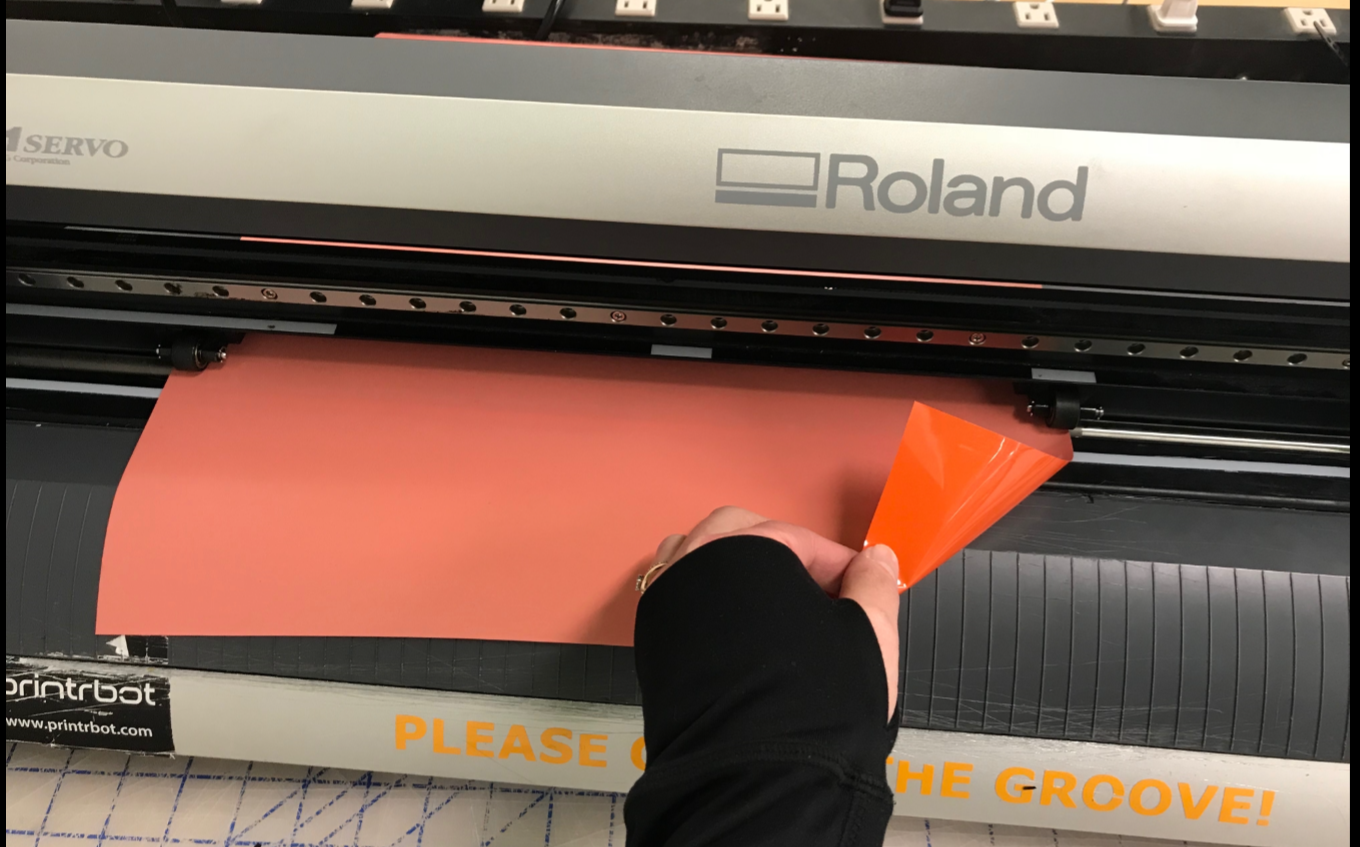
Next, follow the same process for cutting the vinyl as usual. See the instructions for how to do this hanging next to the vinyl cutter on the white board.
Once your vinyl has been cut, weed it! HTV tends to be much easier to weed than sticker vinyl, but still make sure you are taking it slow to avoid ripping part of your design.
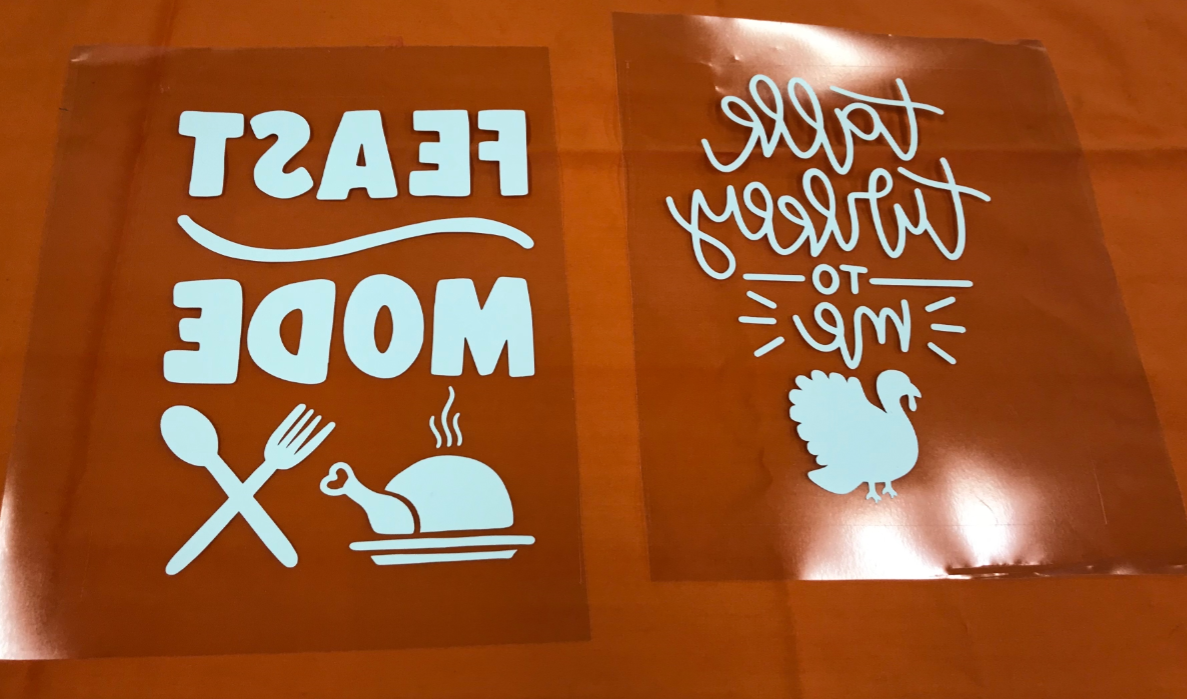
Now, use the sticky "transfer tape" already on your HTV to place your design where you would like it to go on your project. Don't worry if you need to move it around, the adhesive on the HTV won't stick for good until after we heat it with the heat press or an iron.
Lay your design on your shirt (or whatever you will be placing it on) on the bed of the heat press.
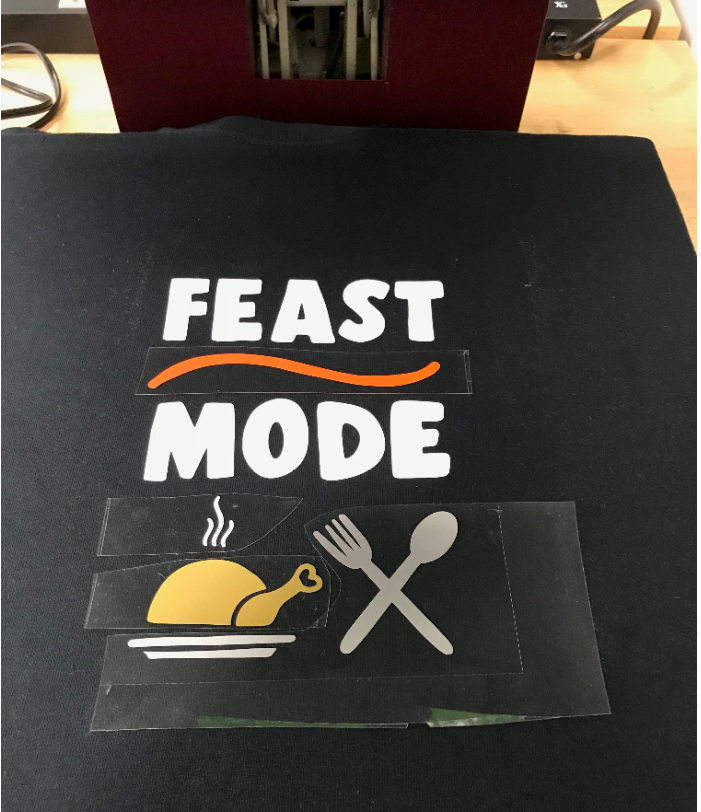
Take the Kevlar sheet and put it over the top of the design, so there is a barrier between the iron on the top arm of the heat press and your "transfer tape."
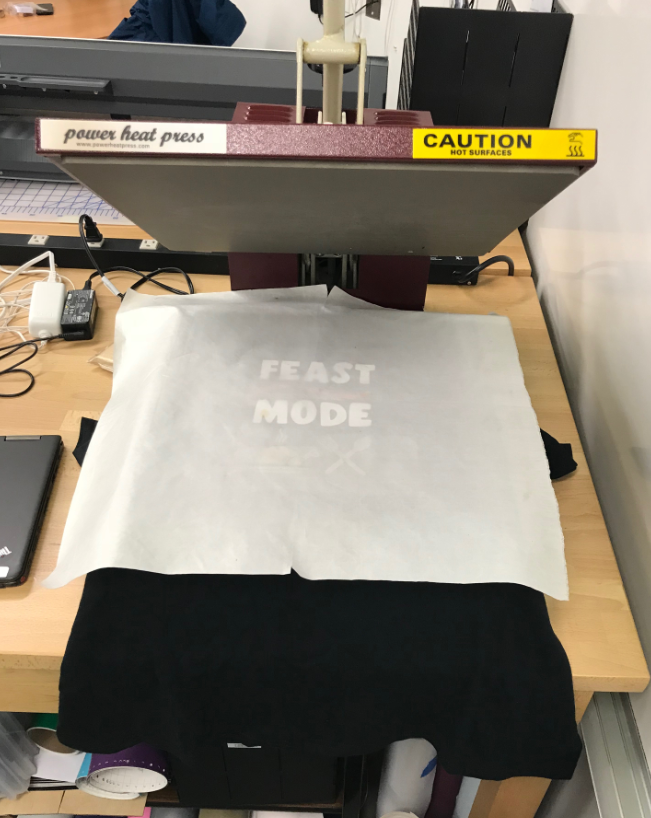
Take the Kevlar sheet and put it over the top of the design, so there is a barrier between the iron on the top arm of the heat press and your "transfer tape."
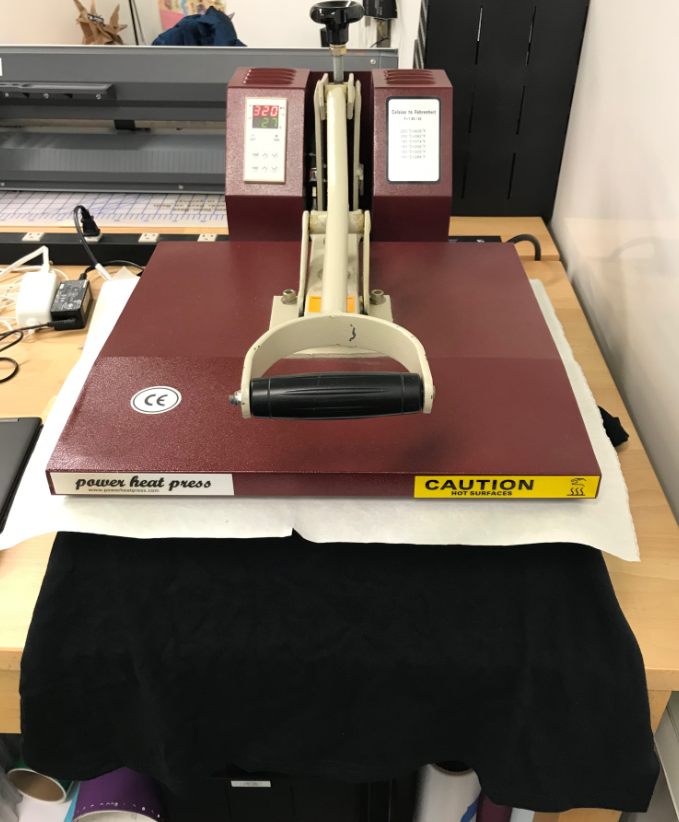
Move the Kevlar sheet to the side, and peel the clear plastic off your design and your item. The HTV should be stuck pretty well at this point, but put the Kevlar sheet back over your design and press it again for about 10-15 seconds to make sure it's really attached well.
You're all done! Make sure you turn off the heat press and be careful you don't touch the hot iron on the top arm of the heat press as you take your item off the bed.
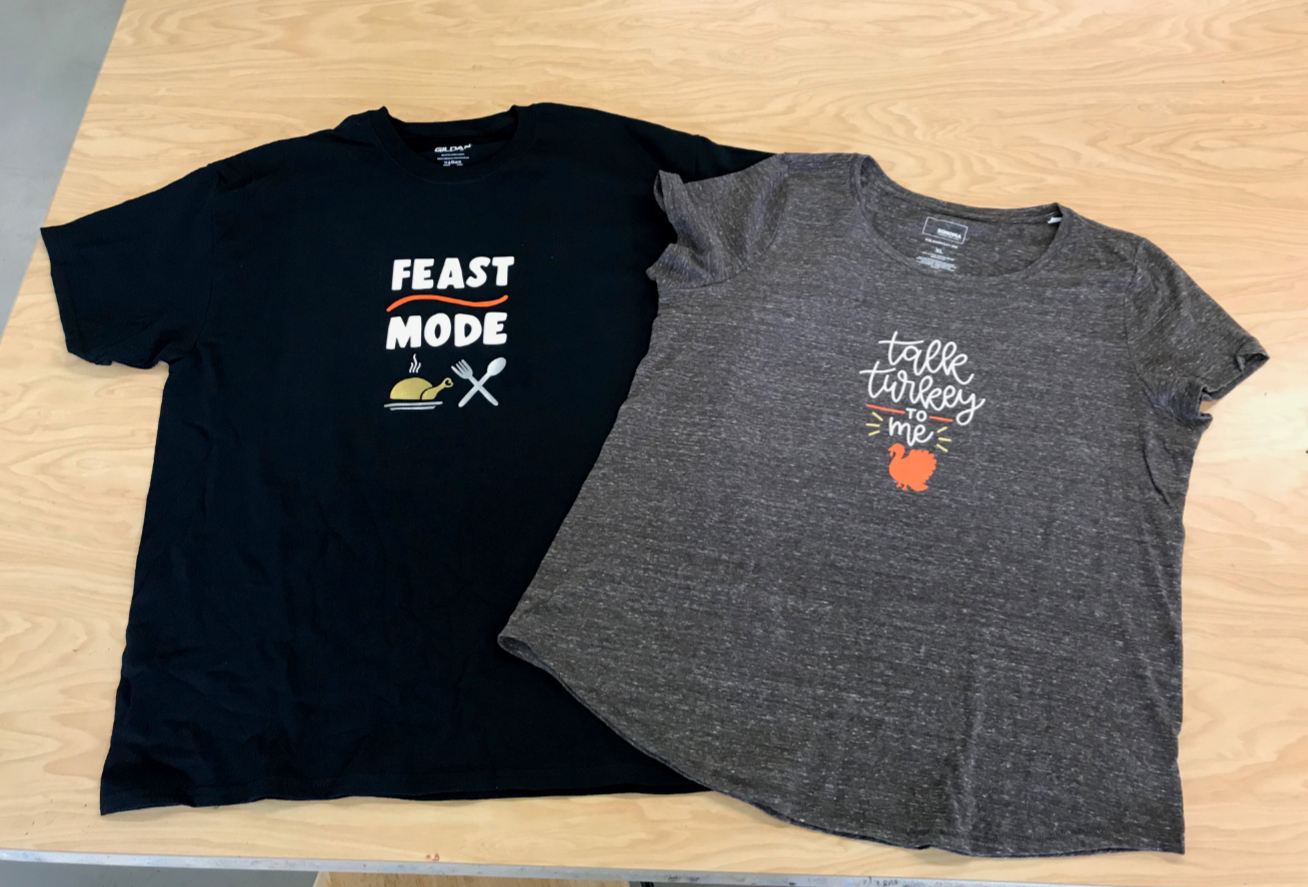
Once you have mastered single color designs, you can move on to cutting out multi-color designs and press them to your shirts like my examples!