
Slicing your Plate and Sending it to the Printer (Or SD Card)
- Now you can click on ‘Slice Plate’ to generate your G-Code.
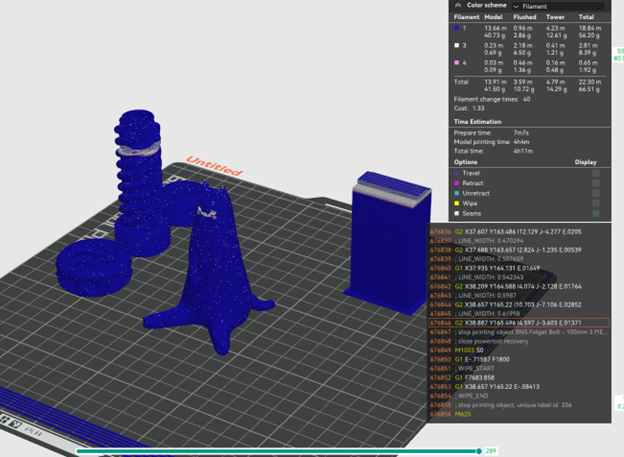
2. You will be able to see how your print looks before you print it, in addition to some statistics on the right side, stating your print time, filament usage (both on the model, flushed, and in the prime tower), and more. You can also drag the circle on the bottom bar around to see your print ‘build’.
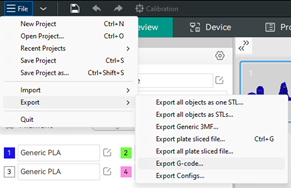
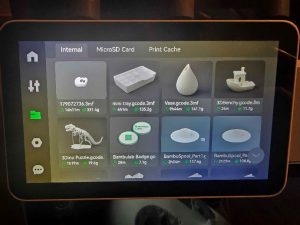
3. If you are saving to an SD card, you can now click on File > Export > Export G-Code (or 3mf) in the upper left corner, and save to your SD card, then print directly off of the printer, otherwise, you may keep following the guide after this step. Your filaments in your file/G-Code must be mapped exactly to what you are using in the AMS if you are doing it this way. Note: On the mini, when you load filament, you push the orange button and load from underneath, while on the X1 you do not need to push any button and can load directly into the hole.
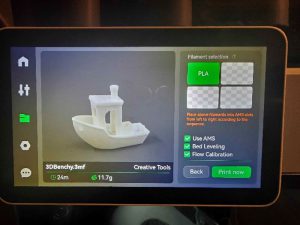
4. If you are printing using the cloud (remember you must be logged into the EPS Bambu account, as the printer is configured to this account), then you may instead click on the ‘Print Plate’ button. Here, you will be able to select a printer, re-map your filament (if needed). Please make sure that you have ‘Bed Leveling’, ‘Flow Dynamics’ and ‘Enable AMS’ (if using the AMS unit) on. You can disable the recording option.
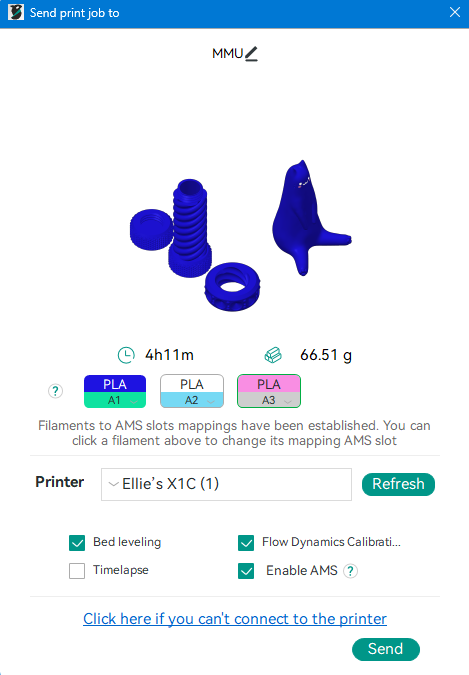
5. Clicking send will send your print to the printer. You will be able to monitor the camera, pause, and stop it using the ‘Device’ tab. Congrats!