Slicing a File in OrcaSlicer
OrcaSlicer is an advanced open-source slicing software tailored for use with Bambu Lab 3D printers, offering enhanced control over print settings and optimized performance. It serves as a powerful alternative to Bambu Studio, providing users with detailed customization options for layer heights, supports, and print speeds. OrcaSlicer is designed to take full advantage of Bambu's AMS (Automatic Material System) and multicolor printing capabilities, allowing seamless integration with complex models. Its frequent updates and community-driven development make it a popular choice among Bambu printer enthusiasts seeking more precise tuning and flexibility for their 3D printing projects.
Downloading Orcaslicer
- Visit the Orcaslicer Github link (SoftFever/OrcaSlicer) https://github.com/SoftFever/OrcaSlicer/releases/tag/v2.0.0
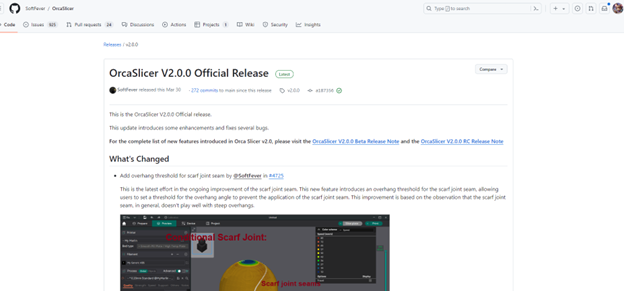
2. Scroll down and download the latest version for your operating system (make sure to update your version if you encounter any issues in the future, as updates may fix these).
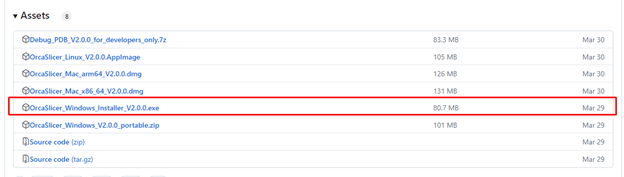
Installing OrcaSlicer
- Run the downloaded installer.
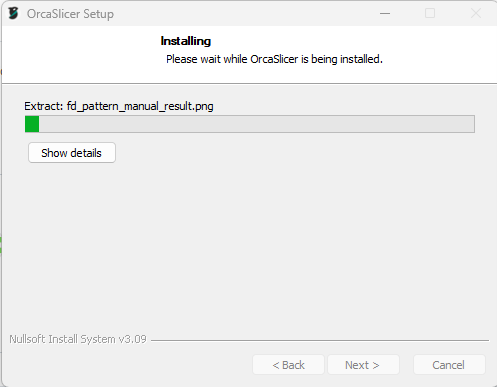
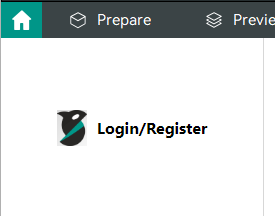
2. Follow the on-screen instructions to complete the installation. Make sure to install the Bambu network plugin!! This is important. You will not be able to connect to the printer without this plugin. If you do not see the Login/Register button on the home tab, you did not install the network plugin and will need to go back and do this step.
3. Open Orcaslicer after installation.
4. If using Cloud Print/monitoring, login to the EPS Bambu account in Orcaslicer (this account is listed/labeled on the Bambu printer).
Configuring Printer & OrcaSlicer Settings
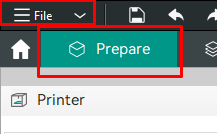
- In the ‘Prepare’ tab, click on the File > Import button to load your 3D model file (STL, OBJ, etc.) or press ‘Ctrl + I’ on your keyboard
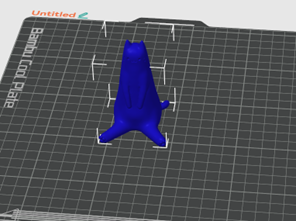
2. Position, scale, and rotate your model as needed.
3. Open the dropdown under printer and select 'Bambu X1 Carbon 0.4 nozzle' and/or 'Bambu Lab A1 Mini'.
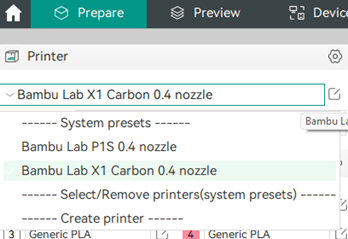
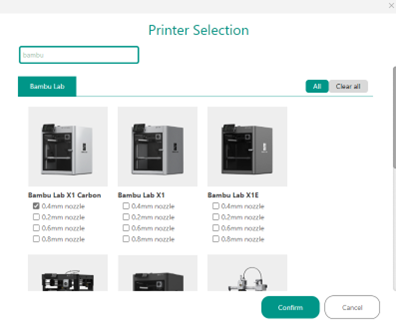
4. If you do not see Bambu X1 Carbon 0.4 nozzle or A1 mini listed, click on ‘Select/Remove printers (system presets). You will see this window appear. Type ‘Bambu’ into the search bar, and checkmark the 0.4mm nozzle under the X1 Carbon model, then click ‘Confirm’.
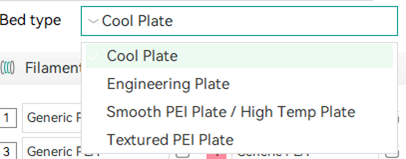
5. Under the ‘bed type’ dropdown, select the bed installed on the printer (it should be titled on the physical bed plate, but some of them are double sided, so make sure you are reading the correct side). We usually have the textured PEI plates in our printers, but always double check to avoid failure.
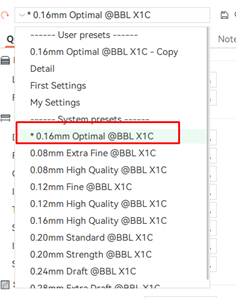
6. In system presets, select the preset you would wish to use. The number represents layer height. For best quality (smooth print with minimal lines), but still decent speed prints, use the 0.16mm Optimal setting.
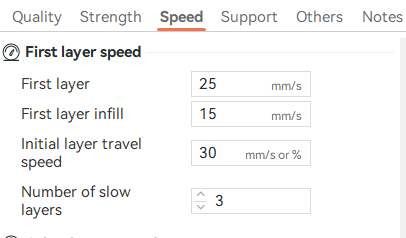
7. To make sure your print sticks properly, you will want to go into the ‘Speed’ tab in Process, and set the number of slow layers to 3, the initial travel speed to 30, the first layer infill to 15, and the first layer to 25.
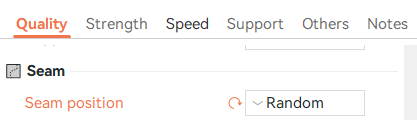
8. You may also wish to set the ‘Seam Position’ in ‘Quality’ to random, for a less visible/solid seam on your print. You can also generate supports if you need to in the support tab, but this is only necessary if you have large/extreme overhangs.