
Preparing a File for 3D Printing
In order to print a file that you find online (such as an STL file used for 3D printing), you will need to create a .gcode file. This file contains the instructions that tell the 3D printer what to do. You can create this type of file in a slicer, which will 'slice' your file into layers that the printer will read off of the .gcode file. For the Prusa printers, you will need to install Prusa Slicer. You can find and install it here: PrusaSlicer
After clicking on that link, select the "Download for Windows" button.
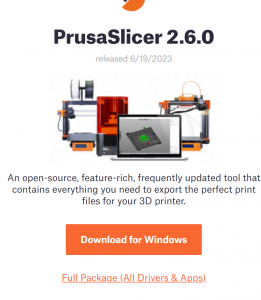
Open the downloaded exe file, and be agreeable as you go through the setup wizard. Optional but not required: select sample objects for your Prusa printer model. Both makerspaces have Prusa MINI.
After that, launch the Prusaslicer app via Windows, then click 'next', scroll down and you will see a screen like this:
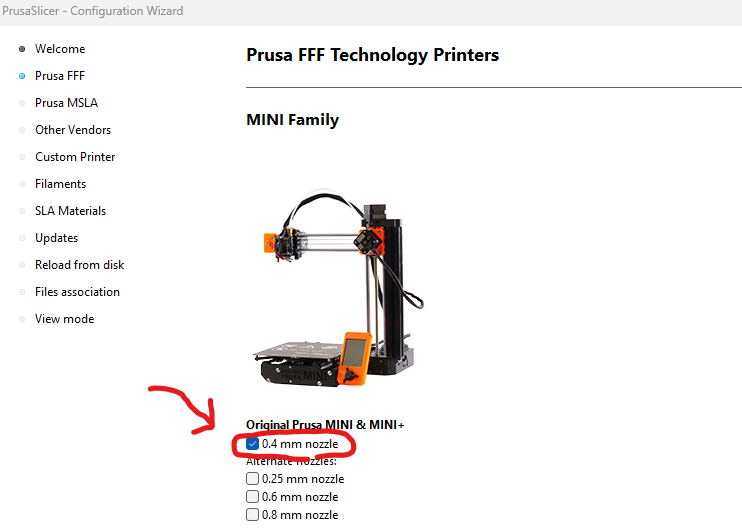
We have Prusa Mini so select that and press next. Press next a couple more times and finally press finish.
To import your .stl file into the slicer, press the farthest left button:

The file we are using is a 20mm calibration cube, which is on thingiverse if you want to follow along. This is the link: https://www.thingiverse.com/thing:214260
Once imported, the file will look like this:
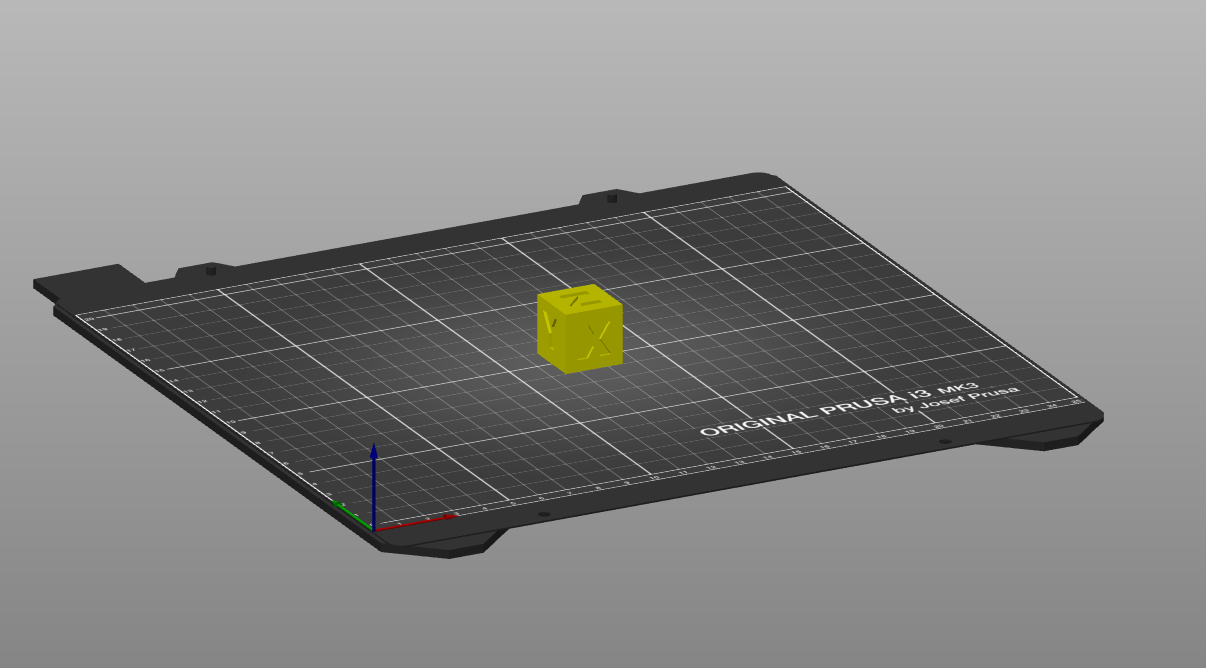
You can drag it around to change its positioning, as well as use the various tools on the left of the screen to change the rotation of the object. You can also add more than one object.
On the right side of the program there is a bunch of settings you may want to change. Below are the recommended settings for a fast print with our most common PLA filament;
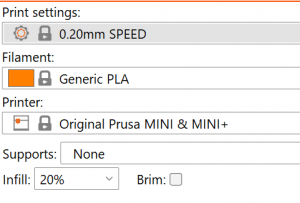
The main things we will want to change are supports, infill, and brim. Before anything else, make sure you’ve selected the correct printer and filament type. For the purposes of printing at EPS, the generic settings will be mostly fine. EPS mostly buys PLA filament, but it's worth checking to be sure.
Supports are a removable structure that prints with your object so that it won't fail during the process, then are removed after the print is completed.
Below you can see supports versus no supports.
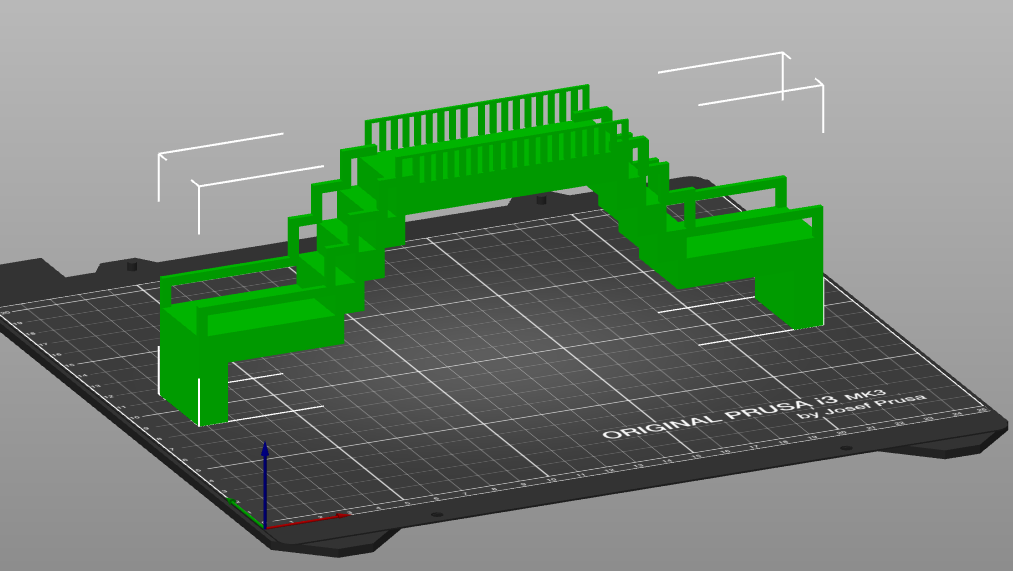
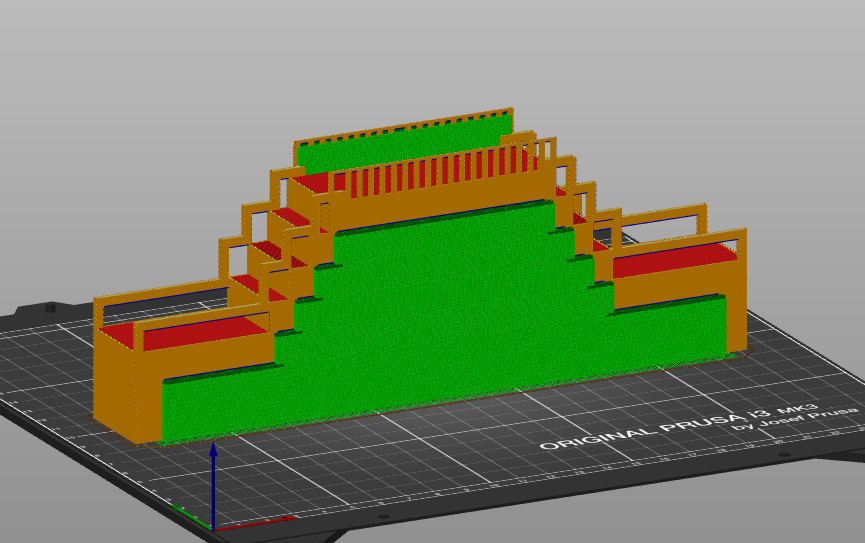
Note: to view your file with supports on, press the preview button in the bottom left of the screen, or ctrl + 6.
You will want to use supports on anything where there is a significant overhang. It is recommended to use for anything over 90 degrees (inclusive of 90 degrees).
Once you have determined whether you need supports, you can change the infill. This setting is how much material will fill the inside of the print, since they are usually mostly hollow. We recommend using 10 or 20%, but you can choose to go higher than this if you want. It will add a lot of time to your print and will use more material. It is not recommended to go under 10%, but you can if you want. Just understand that the print will be weaker internally, since the infill provides a lot of the interior support for the object. For your first print, we recommend using a low infill (5-10%) because anything can go wrong and this way you don't use a lot of filament. Low density is also recommended for draft builds.
For our cube, we selected 10%.
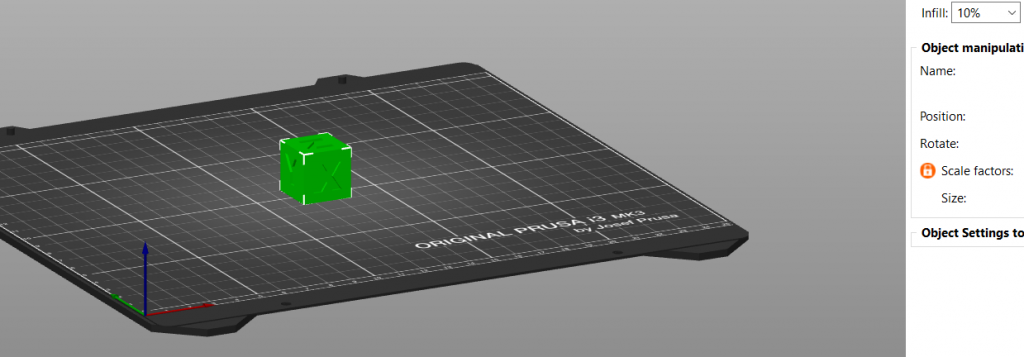
You may also want to add a brim, also known as a skirt. This is a small layer of filament that outlines the bottom layer of the print that you remove once the print is done. Brims help with a bunch of things. They can help resolve extruding issues (for example, if there is a small amount of filament built up at the extruder tip, it will be removed while the brim is printing instead of while the object is printing, saving the object) and they will help the print adhere better to the build plate. To read more, visit this link: https://all3dp.com/2/3d-printing-brim-when-should-you-use-it/. Note that a brim is different from a raft.
This is what our cube looks like with a brim:
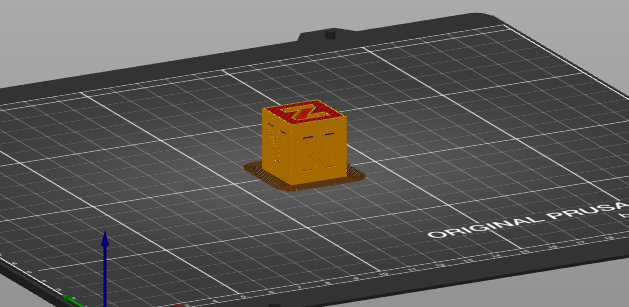
We decided to use a brim on this print because it is very small so it is prone to bad adhesion to the plate.
Once you've changed your desired settings, you're done. Click on "slice now" button in the bottom right corner, save your file, and you're almost ready to print. Be sure to name your file with both your first and last name so the tech department can contact you if needed. Also, don't use special characters in the name such as <, >, /, :, |, *, ?, or ".
Preparing a File for 3D Printing
Copy your .gcode file/files to an SD or MicroSD card. If you used a MicroSD card, you'll need an adapter to a normal SD card. You can find SD cards and adapters in a small green bin attached to the table with the 3D printers.