
Cutting a Sticker
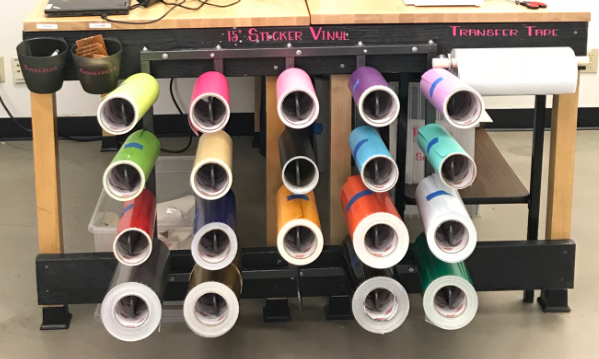
Once you have your design ready (see the tutorials for text and images on a separate page), you're ready to cut it out! First, you need to choose your vinyl. We have many colors to choose from on the rack attached to the vinyl cutter table.
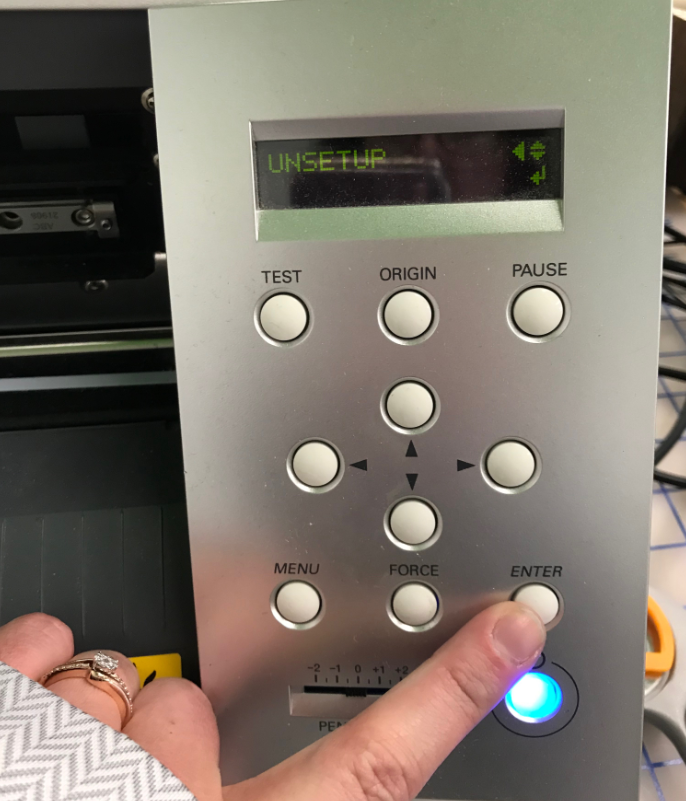
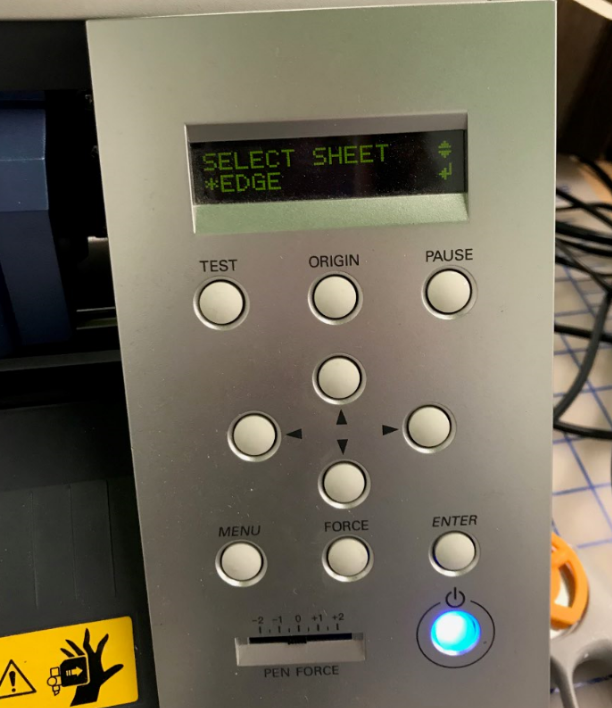
Move the blade out of the way by hitting the "Menu" button on the machine. When it says, "Unsetup," push the "Enter" button.
Take the roll of vinyl you have chosen, and remove the rubber band and set it aside to be put back on the roll when you clean up. Place the roll behind the machine with the colored side facing up, and unroll a foot or two of the vinyl. Insert the edge of the vinyl roll in the machine from the back and pull it out the front a bit.
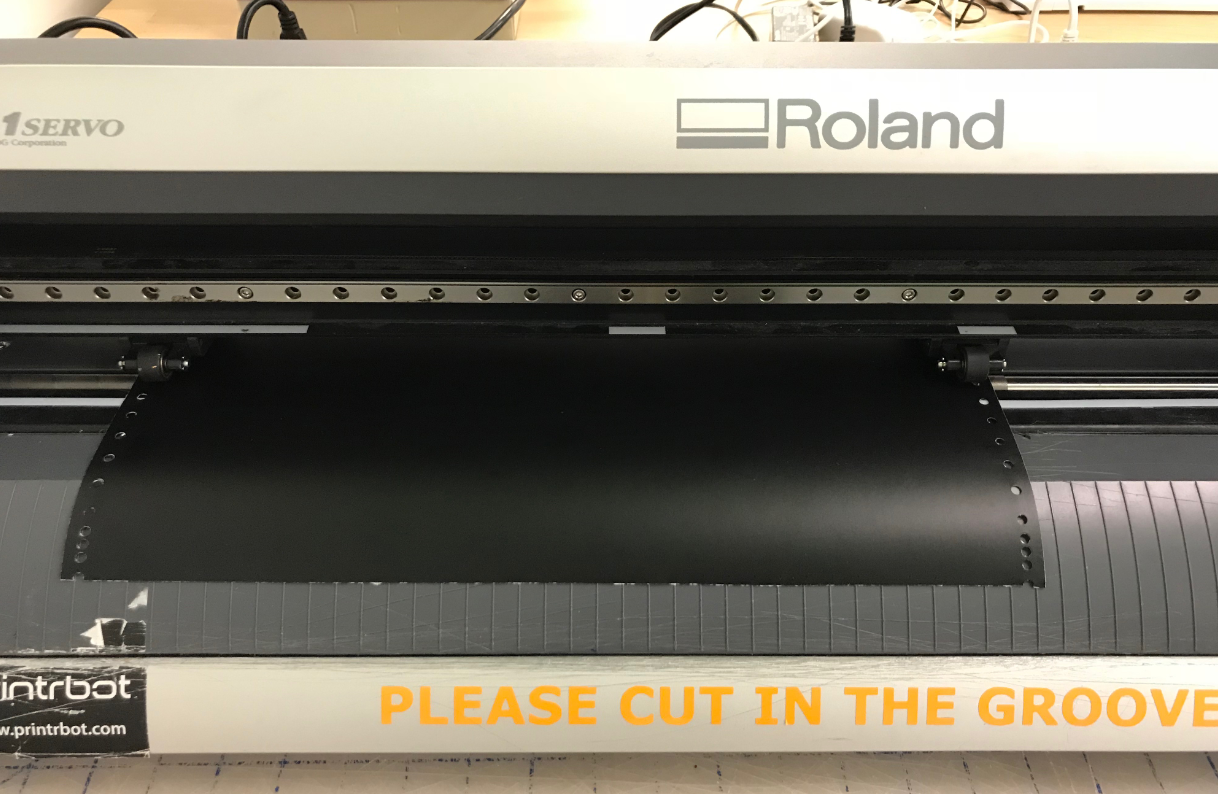
Line up the wheels on the vinyl cutter with the hole punches on the sides of the vinyl roll. Make sure the wheels are also within the gray areas on the metal bar above the wheels! (see the photo above).
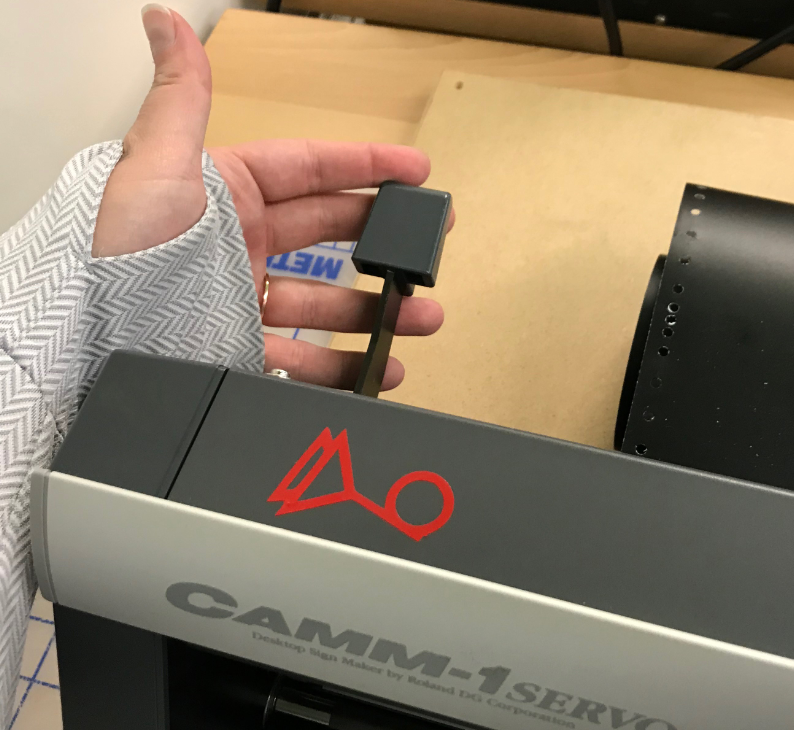
When your wheels and vinyl are situated correctly, reach behind the left side of the machine and pull the lever up to lock the wheels down. Double check that your wheels and vinyl are still in the correct spots.
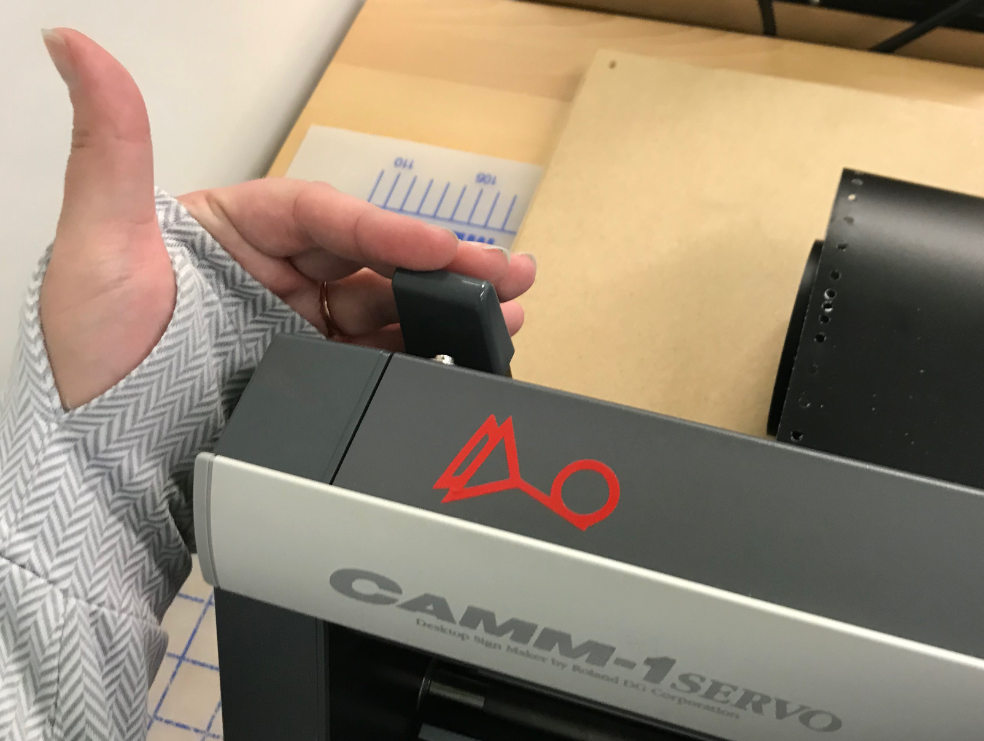
When your wheels and vinyl are situated correctly, reach behind the left side of the machine and pull the lever up to lock the wheels down. Double check that your wheels and vinyl are still in the correct spots.
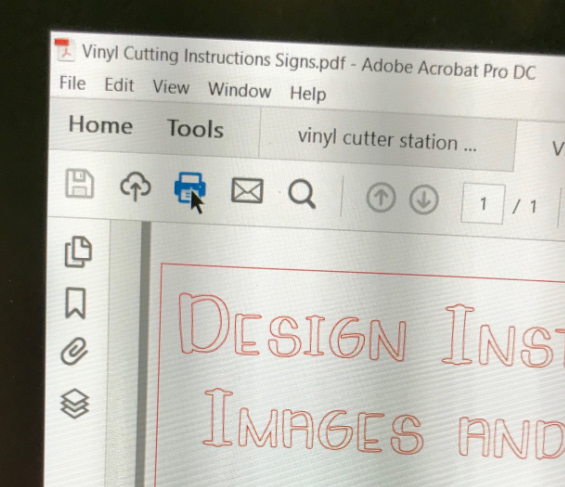
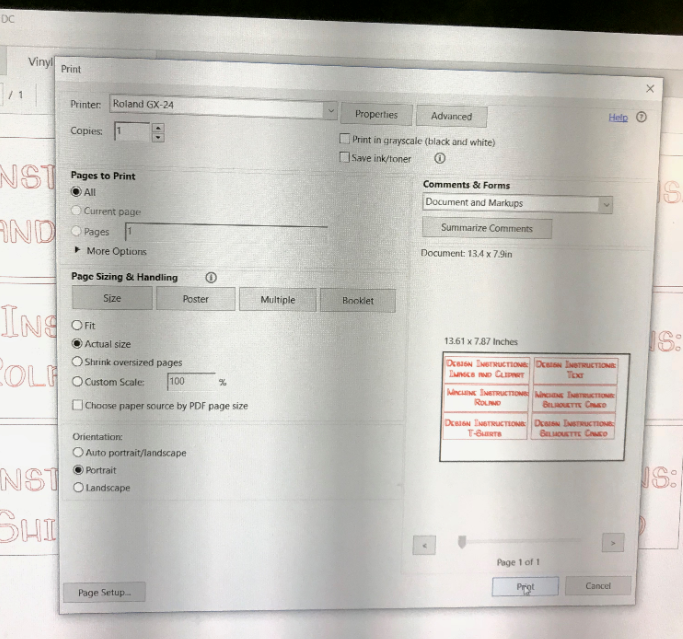
The vinyl cutter is now ready to cut, but we need to send your design to it and make sure the properties are correct. On the laptop next to the vinyl cutter, open your file from the New Vinyl Cutter Dropbox (go to File Explorer if it isn't already open on the computer). From the Adobe Acrobat file, click on the little printer icon at the top of the page to open up the print screen.
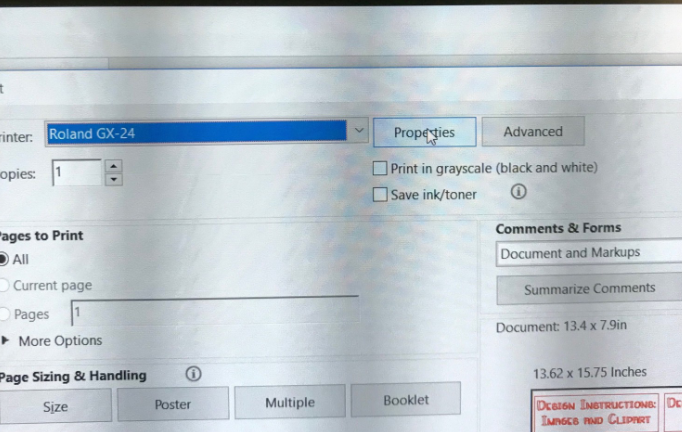
From here, click on the "Properties" button at the top of this window.
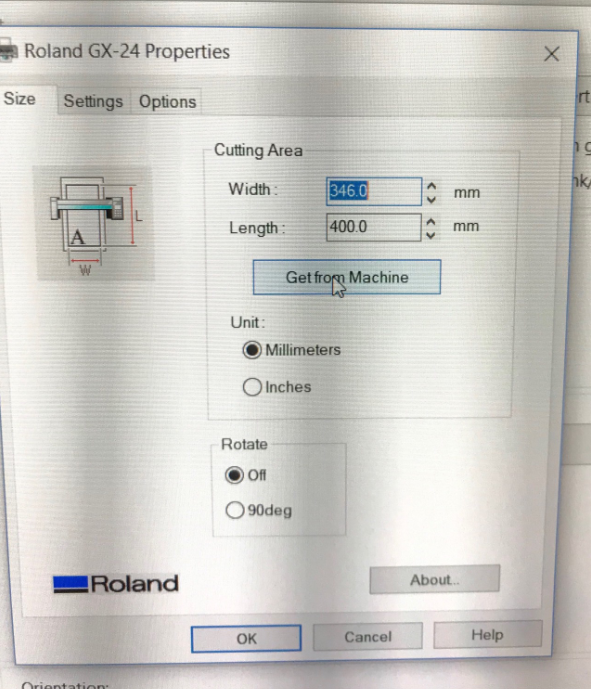
Once the Properties window is open, click the button that says "Get from Machine." This will tell the vinyl cutter how wide your file is. It cannot detect, however, how tall your design is, so you will need to type this measurement in by hand in the "Length" window. The length will be the same as the height you selected when you made your artboard in Illustrator. Click "OK" once those two values are entered.
You should now be back at the print window. If your document looks correct in the preview portion of this window, click "Print" and the vinyl cutter will cut your sticker!
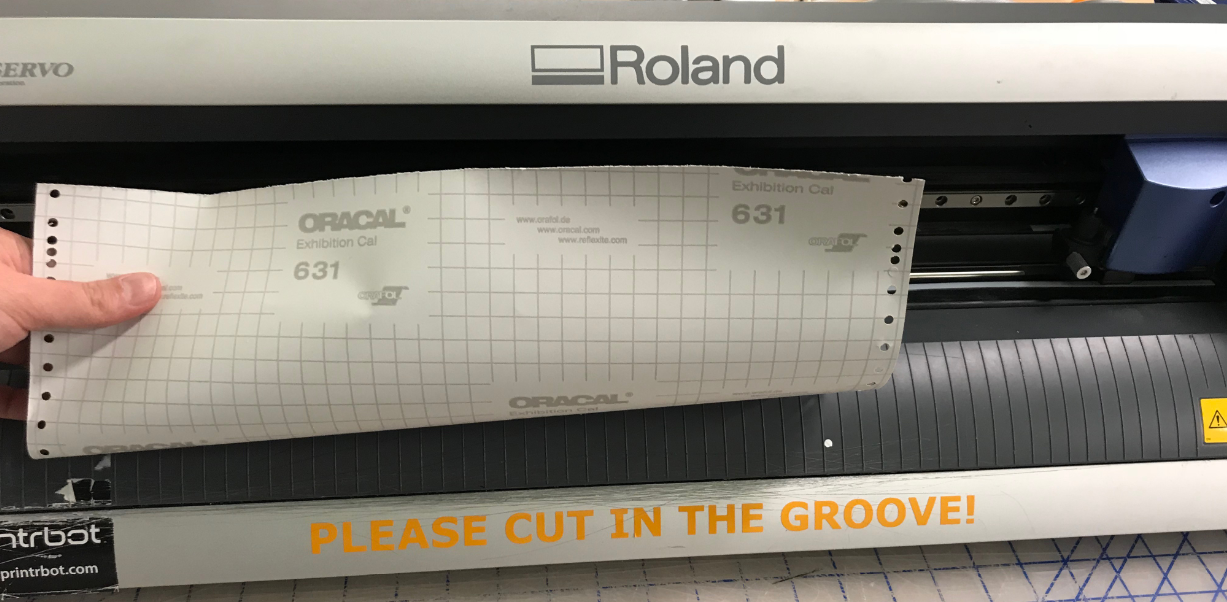
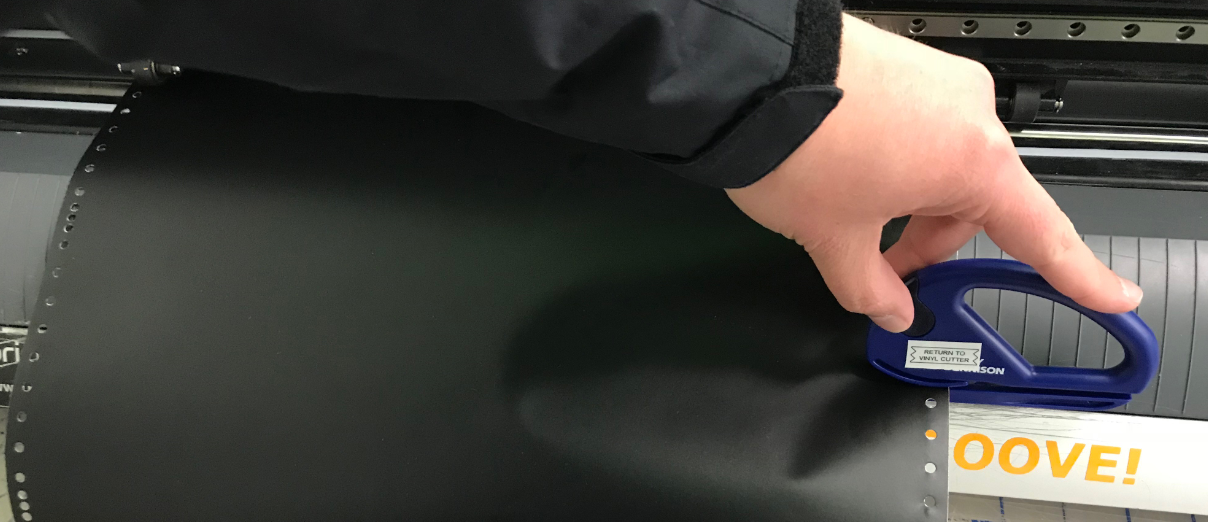
You will know your sticker is done when the blade on the machine is still. When this happens, push the level at the back left of the machine back down to release the wheels. Pull the vinyl roll towards you until the top of your sticker is near the "Please Cut In The Groove" sign on the machine, and use the blade to cut your sticker from the rest of the vinyl roll.
Take the vinyl roll out of the machine from the back, roll the loose end back up, put the rubber band back around the roll, and put it back on the rack.
Now you're ready to weed and transfer your sticker to whatever you're putting it on! Be sure to clean up all your materials and replace the tweezers and squeegees before you leave the vinyl cutting station.