
Connecting to the Printers at EPS
Pre-Requisites
- Make sure have logged into your laptop using your full password. If you used your pin, or another "shortcut" to log into the EPS network, you may experience errors trying to connect to the printers.
- You must be connected or wired into the EPS wifi.
- If the printers prompt you to log in, you must select the other option and use your EPS email and full password.
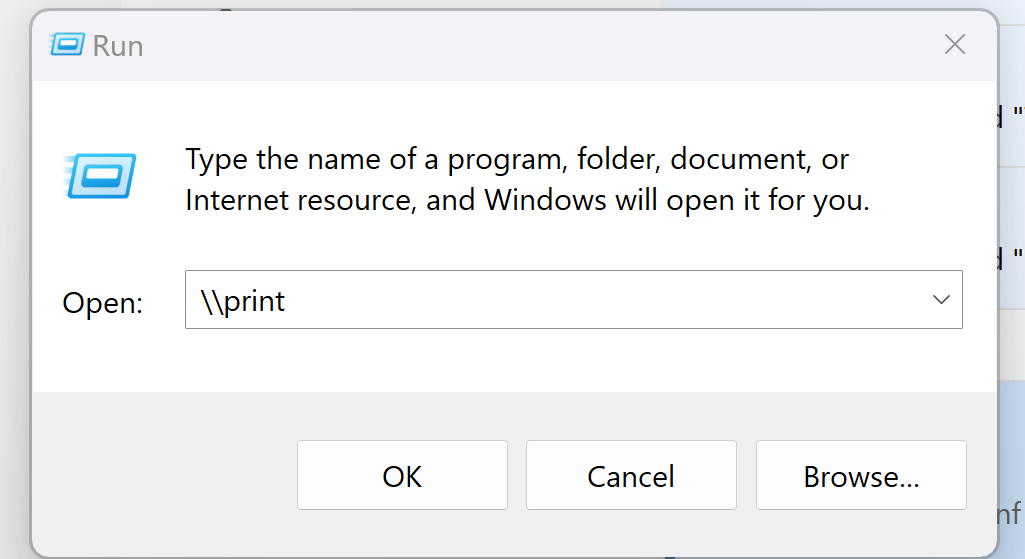
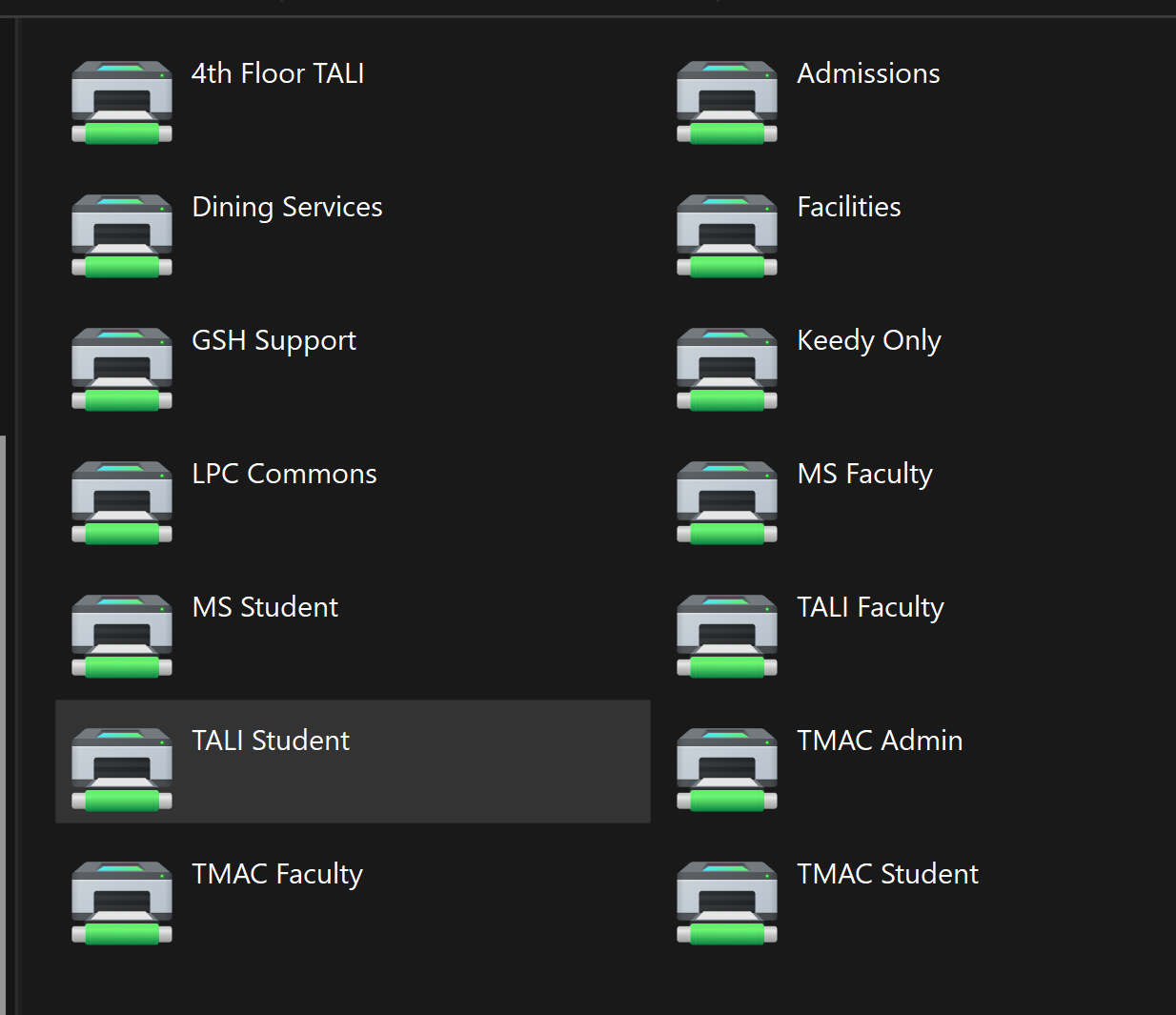
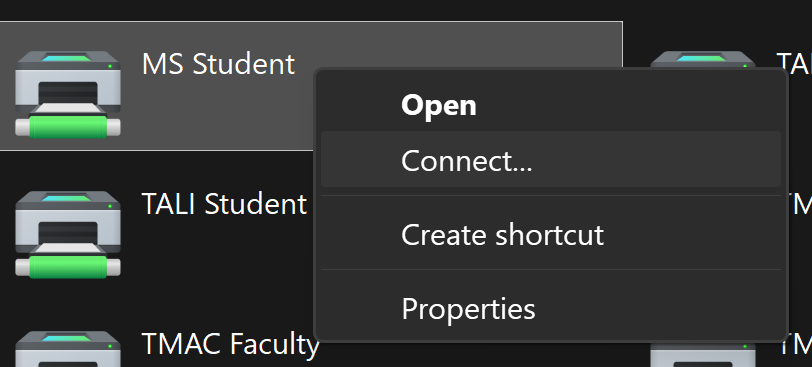
RIGHT click on the device you wish to connect to, and select "Connect". It may take a minute to load and install the drivers. This is normal.
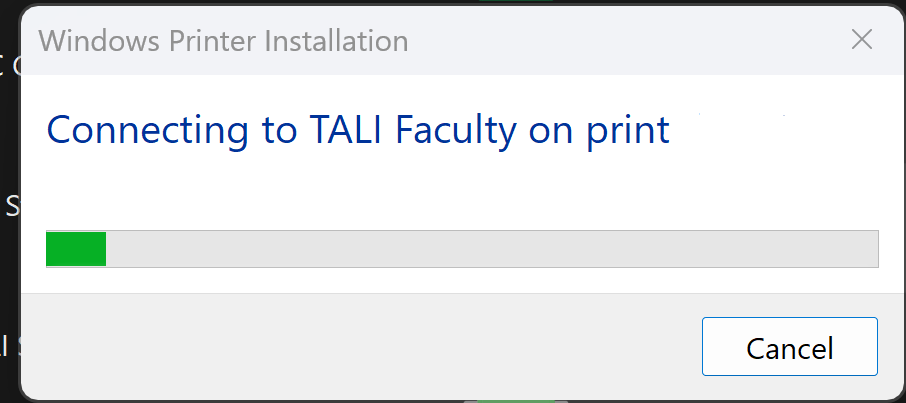
NOTE: If this error appears with the error 0x00000000a, but your printer still successfully installed/continued to install and you see the printer when clicking on print in a program, please do not worry. It's just a small conflict from having previous drivers installed, and Windows should have automatically fixed it.
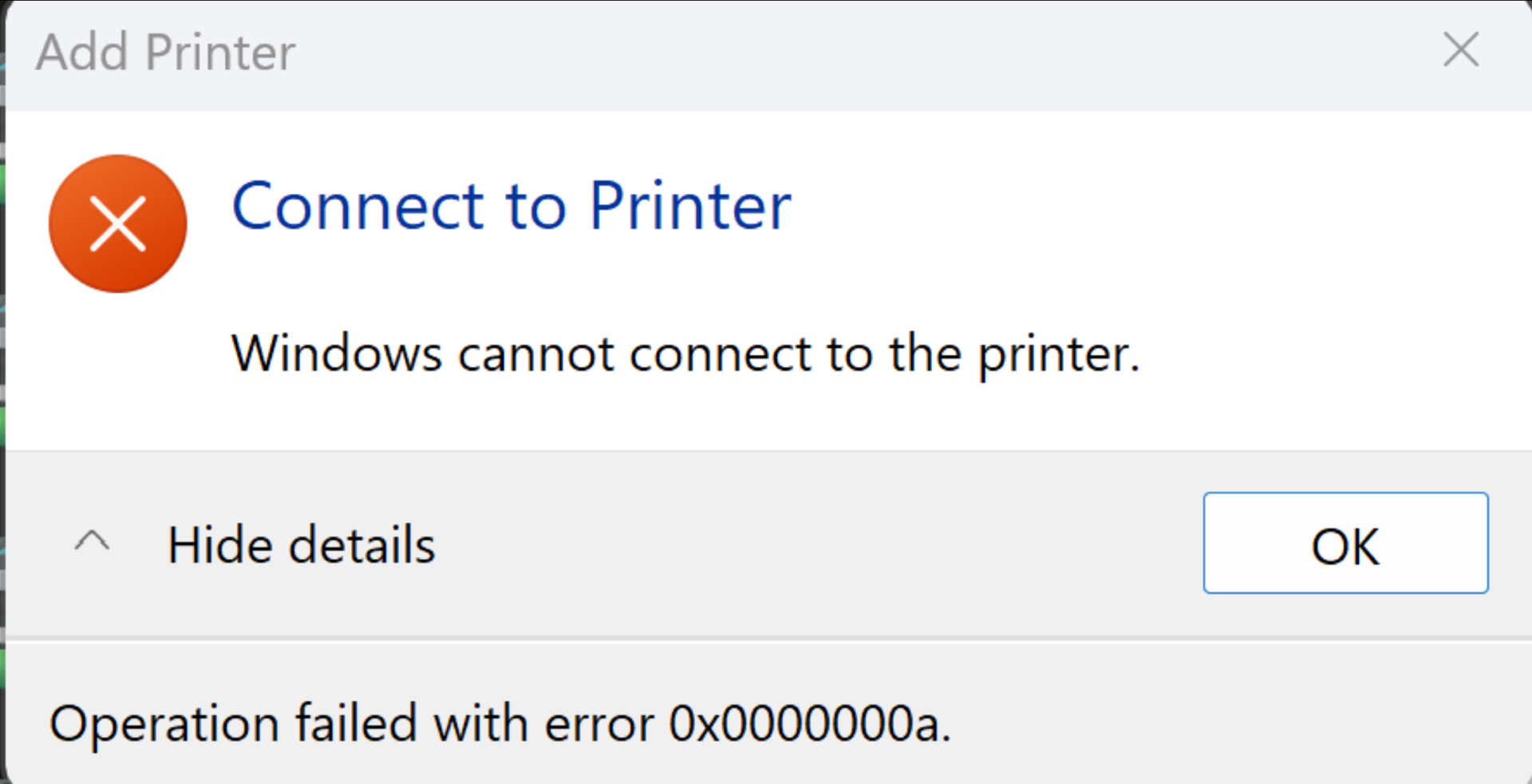
Still Not Working? Try these Steps.
-
Open Control Panel
-
In the top right corner, where it says "View By: Category" switch it to "Small Icons
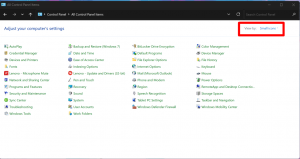
-
RIGHT click on "Devices and Printers" and click "Open in New Window"
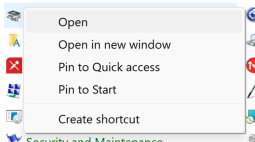
- You will see this page below. If you did not right click and open in new window, a different page may have appeared. You must right click and click on open in new window.
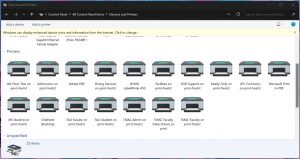
- Right click on every school printer you have installed, and click on "Remove Device".
- Follow the tutorial steps again.
Follow the steps above and see if you are able to add an alternate printer.
In some circumstances, adding a different printer may even allow you to install the one that you were trying to use.
If you are not able to install or print from any printer, please come to the Tech Office for help.