
Designing for the Vinyl Cutter: Clipart and Online Images
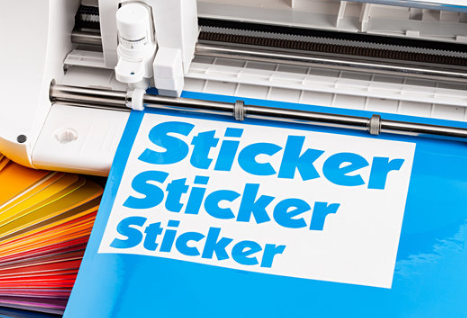
If you find an image online that you want to cut:
Search/Image Tips:
- The vinyl cutter can only follow and find certain types of lines, so you will need to look for images that are black and white. Sometimes a darker color will work with the Image Trace Function in Illustrator, but if you can find an image that is already black and white, you will ensure a better looking cut file.
- Make sure you are searching for royalty free images to avoid copyright issues. You could even type the words "royalty free" in your search online.
- Words like "silhouette" and "black and white" and "clipart" and "vector" are all terms that can help you find an image that will work best with the vinyl cutter.
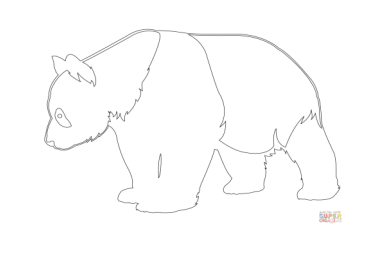
- Some images are going to be easier to peel (this is called "weeding") after the sticker is cut than others are. Beware of images with very small, delicate lines or a ton of detail. It's not impossible to peel these types of stickers, but it takes a lot of attention and patience and the likelihood that an image will fail is much higher. Try to find an image with as much black as possible (like a silhouette) and use a more blocky, thick font. Below are some examples of images…two that will result in an excellent or OK cut sticker, and one would most likely end up failing or giving you a lot of weeding trouble…
Excellent Image for Cutting:

Ok Image for Cutting:

Poor Image for Cutting:
Once you find an image you like:
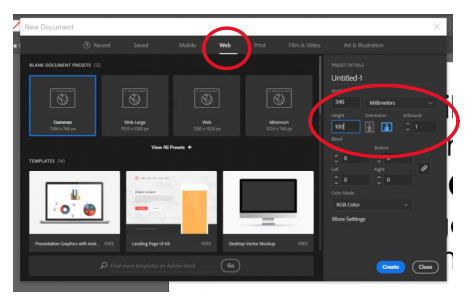
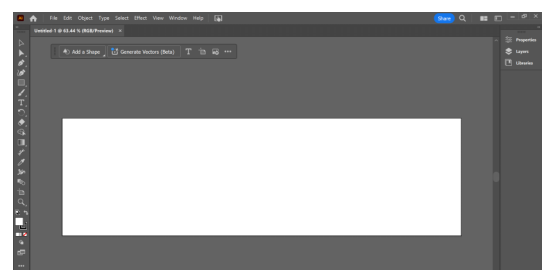
- Open Illustrator, and go to File/New to open the panel that will allow you to select a template. If you haven't made any files yet, you won't have any pre-sets on your screen, so instead click on "Web" at the top of this screen, and fill out the dimensions of your file. For the vinyl cutter, the width of your file MUST always be 340 mm. Change the measurement type option to "Millimeters," and type 340 into the width box. The height can be whatever you want it to be, so you should measure the area you are wanting to put your sticker and use whatever height in millimeters you need. A pretty standard "laptop sized" sticker is 100 millimeters. Type in the height and choose the landscape orientation. At the bottom of this window, make sure the color palette selected is "RGB Color." When you have the settings looking like the screen shot below (with the exception of the height, if you didn’t choose 100 mm), then click "Create" at the bottom of the screen.
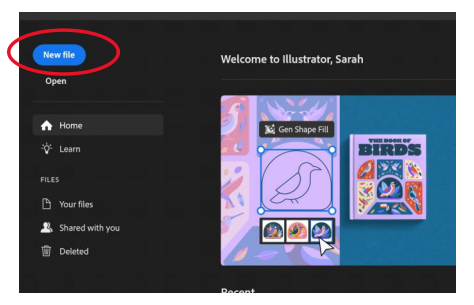
Your artboard should look somewhat like the image below. If it doesn't, go back and
check your settings to make sure you entered them correctly.
Now, go back to the image you found that you want to vinyl cut. Right click on the image and select "copy image." Alternatively, you can save the image to a folder on your computer, then if you go into Illustrator and go to File/Place it will allow you to select the computer, then if you go into Illustrator and go to File/Place it will allow you to select the image you want and paste it into your document. If you were able to just copy the image, then go to your Illustrator file and paste it by hitting Ctrl+v. You will likely need to do any cropping of the image and resizing so it fits on your art board BEFORE moving on to the next step. You should find a button that says, "Crop Image" on the Properties tab on the right side of your screen once you paste your image into Illustrator. Click this and crop the image as needed before you move on to the next step!
TIP: When you are resizing the image to fit on the art board, if you hold down the keys Shift + ALT while you drag the corner of the image, Illustrator will resize the image from the center instead of from the sides/corners and that will keep the proportions of your image the same. Otherwise sometimes the image looks stretched or warped.
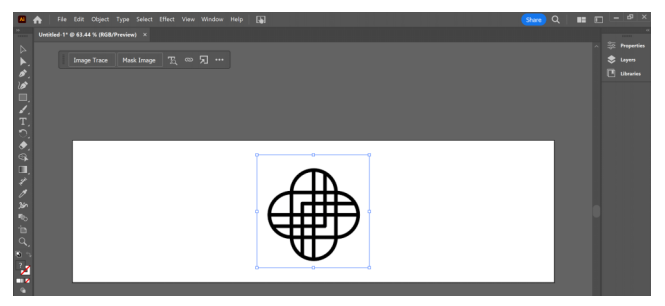
Once your image is pasted into your Illustrator document, you're ready to make a tracing of the image that the vinyl cutter can follow. Select your image with the selection tool (if it's not already) and you should see a button that says "Image Trace" next to it. If you don't see this pop-up, open the Properties tab on the right side of the page and it should be there as well. Click this button to create a tracing of your image.
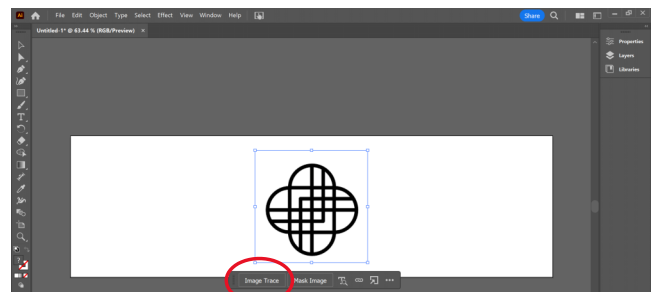
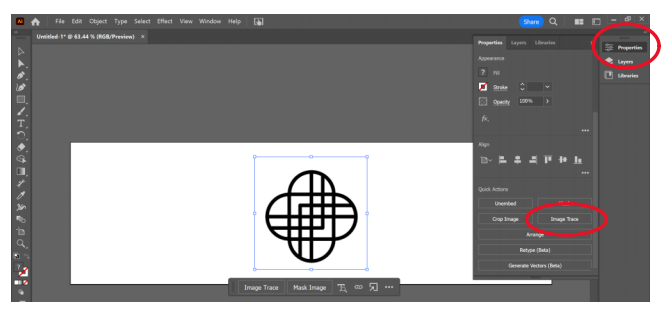
Once your image is traced, open the Properties tab, scroll down, and look for a button that looks like a rectangle with some grey lines on it under the Image Trace option. Click on this button to open up the Image Trace window. You can also go to Window/Image Trace to bring up this window.
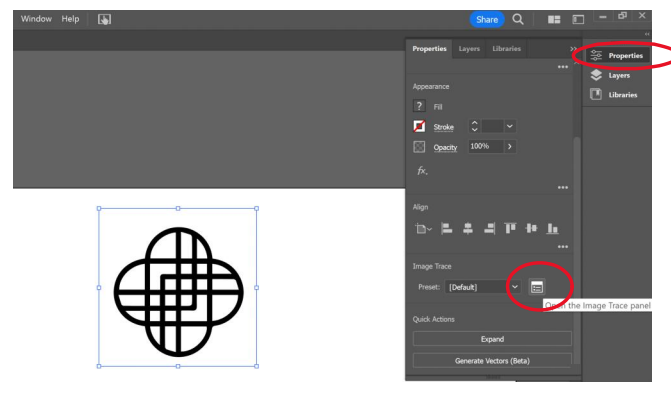
In the image trace window, click on the arrow next to "Advanced" to open up the advanced options. Click the box that says, "Ignore Color." This will remove the background color from your image, which is important to prevent sneaky lines from getting cut around your image that you can't see. After you click this box, you can close getting cut around your image that you can't see. After you click this box, you can close this window.
There is one final step needed to ensure the vinyl cutter can read your image to cut. After you have image traced and ignored white like the step above, you will need to create outlines that the vinyl cutter can follow. This needs to be done as a LAST STEP, as you cannot edit your image again after it's done! Go back to the Properties tab again, and find a button that says, "Expand." Click on this button, and it will create vector outlines around your image
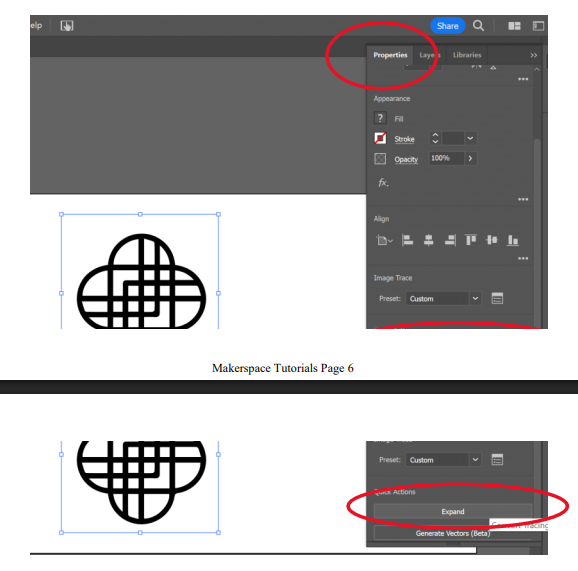
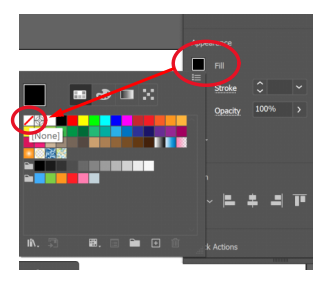
Now, we need to edit the paths/lines that you just made when you expanded the tracing. While your image is selected, go back to the Properties tab, and change the following settings:
---- Fill color to none (looks like a white square with a diagonal red line through it)
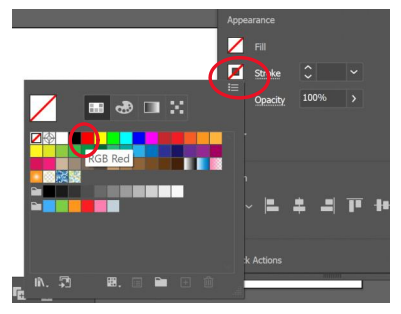
---- Stroke Color to RGB Red
---- Stroke size to 0.001 pt and then hit enter. This will show up as 0 pt once you hit enter, but as long as you can see the red lines in your PDF, it's there, just super tiny
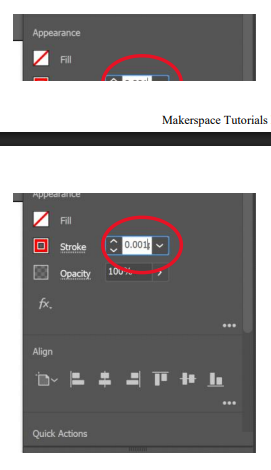
Your settings and image should look like the image below when you have done all of these things.
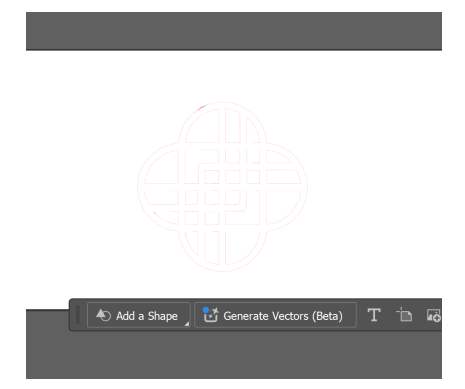
You are now done with this image and it's ready to cut on the vinyl cutter! Before you can send it, though, you need to think about a few things:
- The vinyl sheet is the same width as the width settings you put in at the beginning. If you only cut one thing out (for example, if I only put my Pac-Man Ghost in my PDF), then that is a lot of wasted vinyl. Always fill up the whole width of the page, either by copying and pasting multiple copies of the image you just prepared (make some for your friends!), or finding other images you would like to have stickers of and going through the same process outlined above with them until your page is full.
- Your entire sticker/page will be cut in the one same color of vinyl (you can choose which color you'd like in the design lab). Layering is possible, but complicated, so you should come to see Ms. Hollingshead for instruction on this if you really want to attempt it.
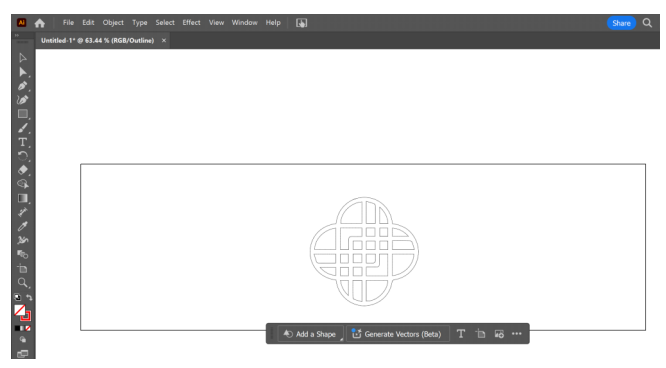
- It's a good idea to double check your file before saving to the dropbox to make sure you don't have any sneaky lines or dots that you can't see but the vinyl cutter will find. If you hit CTRL-Y this will bring you to the outline view, which will show you all of the lines the vinyl cutter will cut.
Now it's ready to save! Always save a copy of it as an Illustrator file on your computer so you can go back and edit it or use it again later if you want to. I would recommend making a file on your computer called "Vinyl Cutter Files" or something of the like. To save, go to File/Save As. A window will pop up that looks like the one below, be sure to click "Save on your computer."
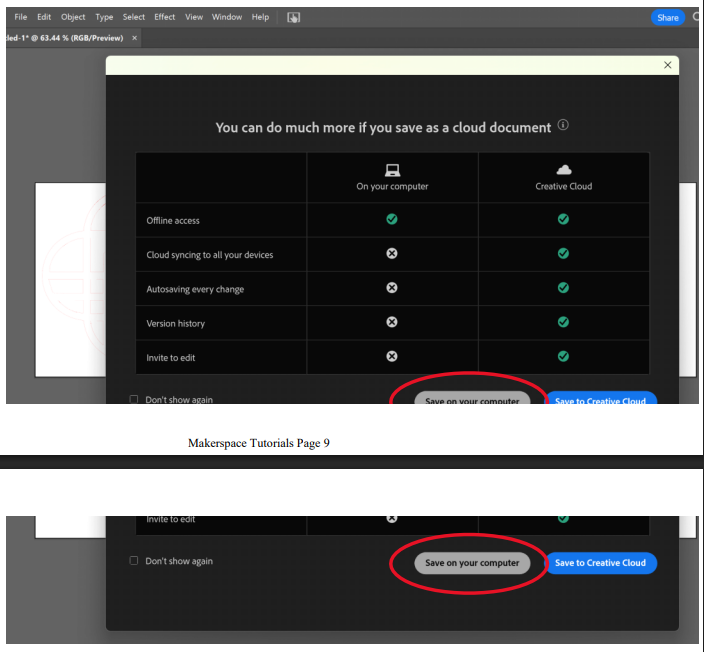
Choose the folder you would like to save it to, make sure you type in a name for the file that you will be able to recognize and find later (START THIS WITH YOUR NAME ALWAYS!!!), and check that the file type is Adobe Illustrator. Then click save.
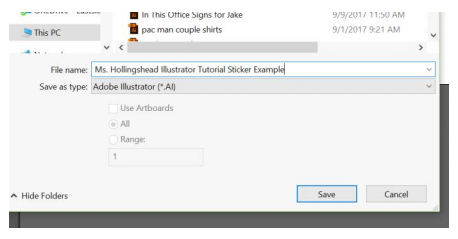
You will also need to save the file as a PDF in a Dropbox on the Students drive in order for the vinyl cutter to read and understand it. To do this, go back to File/Save As. It should bring up the window you saw in the step before. We need to navigate to the Students drive to locate the Dropbox we need to save the files in.
---When the file explorer window opens, delete everything in the file path box and replace it with \\drives
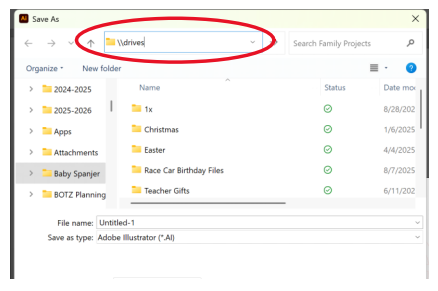
Scroll down until you see the Students drive. Double click to open it.
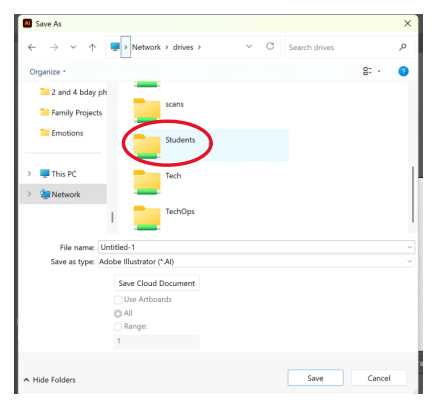
Scroll until you find a folder called Make@EPS. Double click to open it
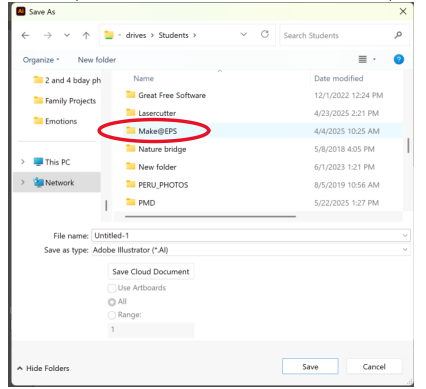
Scroll until you find the folder called New Vinyl Dropbox. Double click to open it.
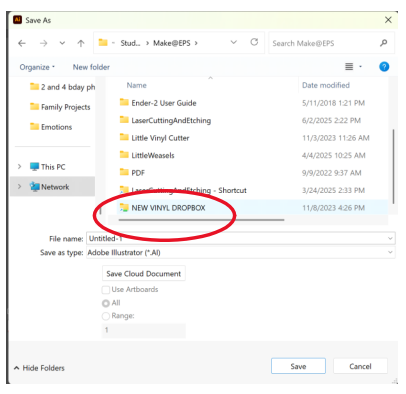
This is where you will save your file. If it's not already obvious, take a look at all of the files here…hopefully you can see why it's so important to have your NAME and a descriptive title for the file!
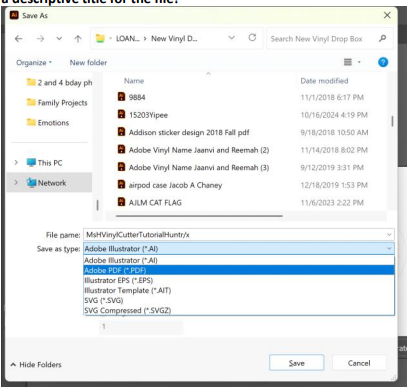
Before you click Save, make sure your name is included in your descriptive title, and click the dropdown menu next to file type and select Adobe PDF. Then click "Save."
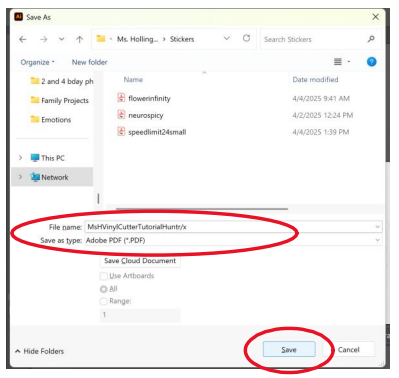
Before you click Save, make sure your name is included in your descriptive title, and click the dropdown menu next to file type and select Adobe PDF. Then click "Save."
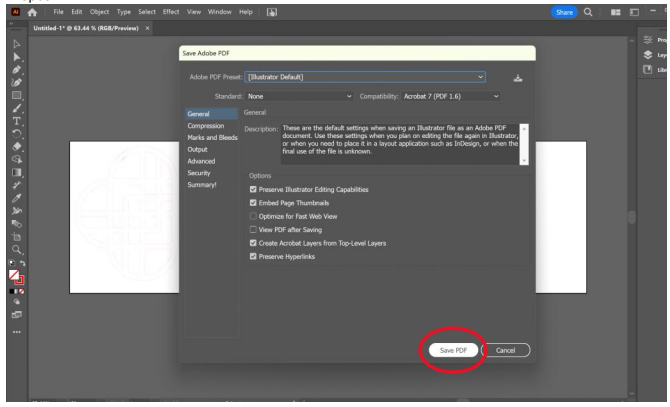
Once the PDF of your file is saved in this Dropbox, you're ready to go to the Makerspace and open your file on the Vinyl Cutter Laptop and cut your sticker! Follow the instructions for the machine cutting that is on the clipboard next to the machine.