
Introduction to the Bambu Printers
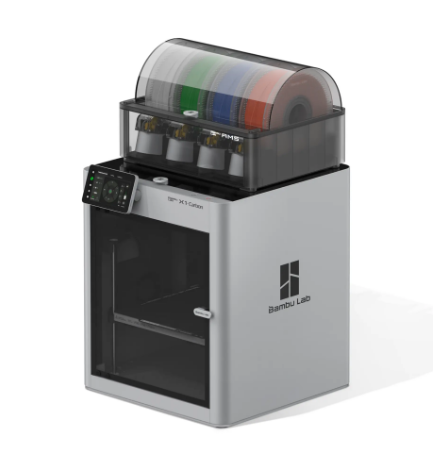
This guide contains:
- Installing OrcaSlicer
- Configuring Bambu Printer and OrcaSlicer Settings
- Configuring and Colouring Multicolour Prints
- Slicing your Plate and Sending it to the Printer or SD Card
Introduction
Bambu 3D printers are known for their high-speed printing capabilities, precision, and user-friendly interface, making them an ideal choice for both beginners and experienced makers. Designed with a focus on reliability and versatility, Bambu printers support a wide range of materials, from basic PLA to more advanced filaments like PETG and ABS. Equipped with smart features such as automated bed leveling, filament detection, and multi-color printing options, Bambu 3D printers offer an enhanced printing experience that allows users to bring their creative projects to life with ease and efficiency.
You may also wish to use an advanced filament such as carbon fiber. Only the X1C is able to print in Carbon Fiber at the moment, but if you wish to use this type of filament you may ask for permission. You MUST prototype in PLA or PETG first.
Important Rules
-
- Do not insert brittle/breaking filament or TPU into the AMS system or Bambu printer. You can check if your filament is brittle by seeing if it snaps when you bend it. YOUR PRINT WILL FAIL AND YOU WILL BREAK THE PRINTER IF YOU DO THIS. The exception on this is Carbon Fiber which is brittle by nature but will print just fine if you select the correct settings.
-
- Please make sure to select the correct filament setting (Generic PLA for PLA, PETG for PETG, and so on. If you do not do this, your print will fail and the printer WILL clog).
-
- Please watch the first few layers of your print to make sure it adheres before you leave. If it does not, restart the print and adjust the bed plate temperature to a higher level in increments of 5 at a time (can be done directly on the printer or through the monitor screen in OrcaSlicer). If you have small pieces on your print, you may need to use a brim or other supports to keep your print in place.
-
- Please make sure to put unused filament back into the correct Ziploc baggy (by colour and/or filament type).
-
- The total time of any one print may not extend longer than 3 hours without express permission from one of the tech teachers/team.
-
- You may only print on one machine at a time.
-
- You must stay in the makerspace and watch any print you start for 20 minutes minimum in order to watch for or correct any issues that arise.
-
- No print may run past 4:00pm which is when all of the machines are powered off for the night (without the permission of the tech department).
-
- You must come pick up your print by the end of the next day otherwise unclaimed prints will be recycled.
-
- You must include your first and last name in the file name of every print so that the tech department can notify you of any issues or clarify rules for you as needed.
- If you download a design that someone else made, you must make some sort of addition or alteration to personalize the design before printing. The best course of action is to design something on your own from scratch using Blender, TinkerCad or OpenSCAD.
Important Rules
General Rules of Thumb
3D Printer Parts can get up to 215+ degrees Celsius!
- Do not touch the extruder nozzle or heating element
- Do not touch recently extruded filament
- Wait for the print bed to cool before touching it
- Keep hands away from the printer while it is in use
- Use caution while removing objects from the printer
General Guidelines
The 3D printer's extruder operates at a very high temperature of up to and over 215+ degrees Celsius. The printer also has a heated print bed, which heats up to 60 degrees Celsius. It is very easy to burn yourself on the extruder, so avoid touching it during any process, including loading or removing filament (you should not need to touch the printhead on the Bambu to do so), printing, or cooling. You can see how hot the extruder is on the info screen on the printer:
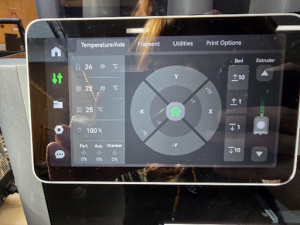
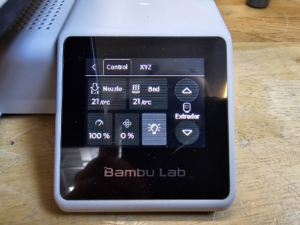
The first temperature (with an arrow symbol) is for the nozzle. The second is for the heatbed.
Different materials also will require different temperatures, so please make sure to set your temperature appropriately as to not have your print fail or clog the printer. The build plate may be safe to touch at 60 degrees for PLA, but other materials may have higher temperature requirements, so be careful and wait for the bed to cool down before touching it.