Steps for Setting Up Files on the xTool P2s
Importing Your Design
- Install and open the xTool Creative Space software on your computer (found at https://www.xtool.com/pages/software) .
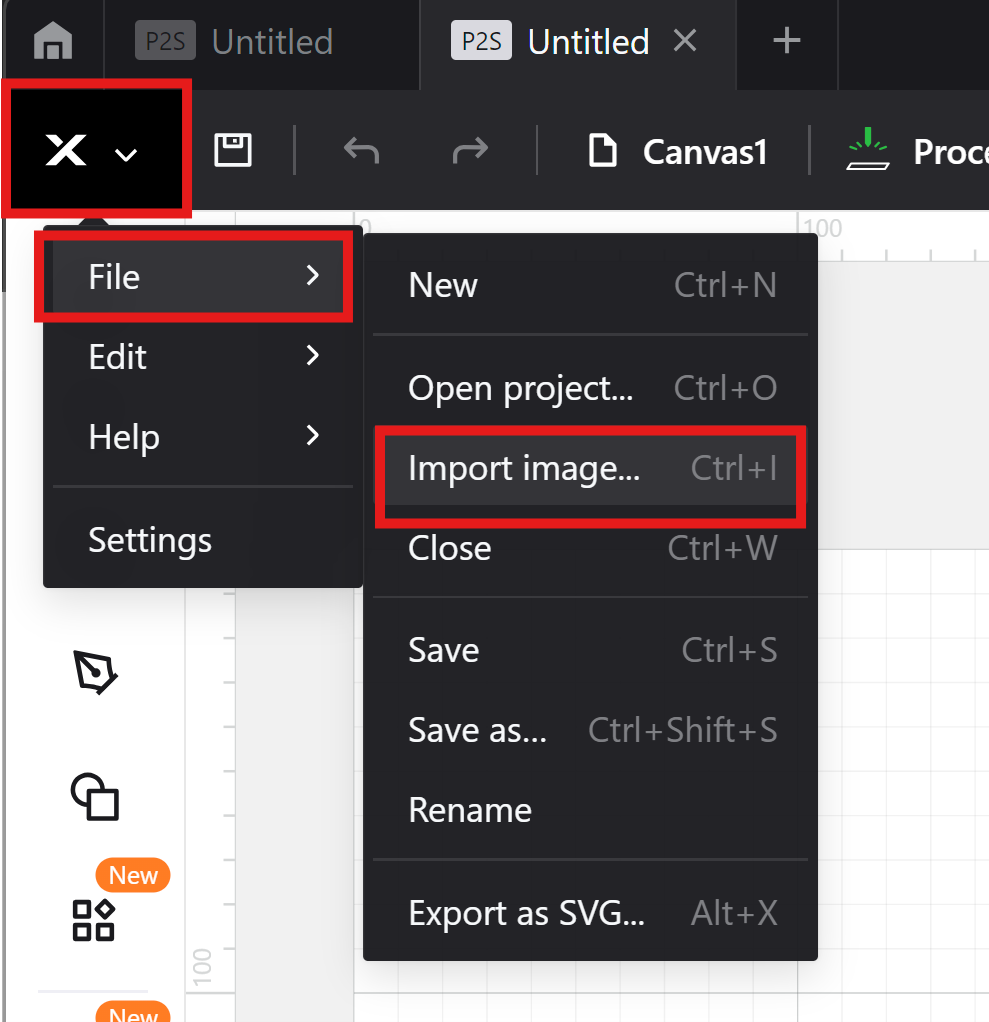
- Create a new project (top right corner) and click the Import button or drag and drop your design file into the workspace. Supported formats include SVG, JPG, PNG, and DXF. In our tutorial, we will be using a PNG file for our example, but an SVG is recommended.
-
-
- Please note that embedded text in SVGS will not import to the program, you will need to make sure it is an outline in illustrator first.
- Unlike our other laser cutter, you cannot use PDFs, so your old files will not work.
-
Adjusting and Preparing the Design
- Position Your Design:
- Use the software's grid layout to position your design where it will be on the cutting bed.
- I put mine in the top right corner for now, but once we connect our laptop to the machine (or open the file up on the laptop at the machine if you choose to drop it into the laser cutter folder) you will be able to view an image of the wood and place your image more precisely
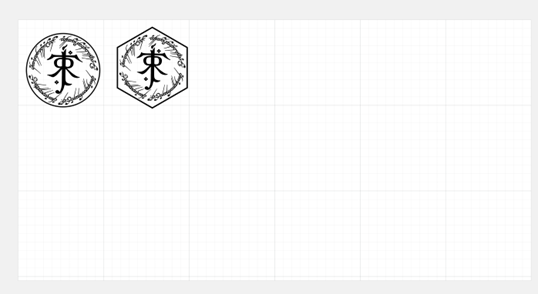
- Ensure your design fits within the material's dimensions.
Create an Outline/Offset for Cutting:
-
- If your design is for engraving but also requires cutting around the engraved object:
- Select your design in the workspace.
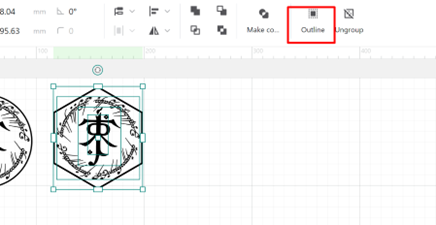
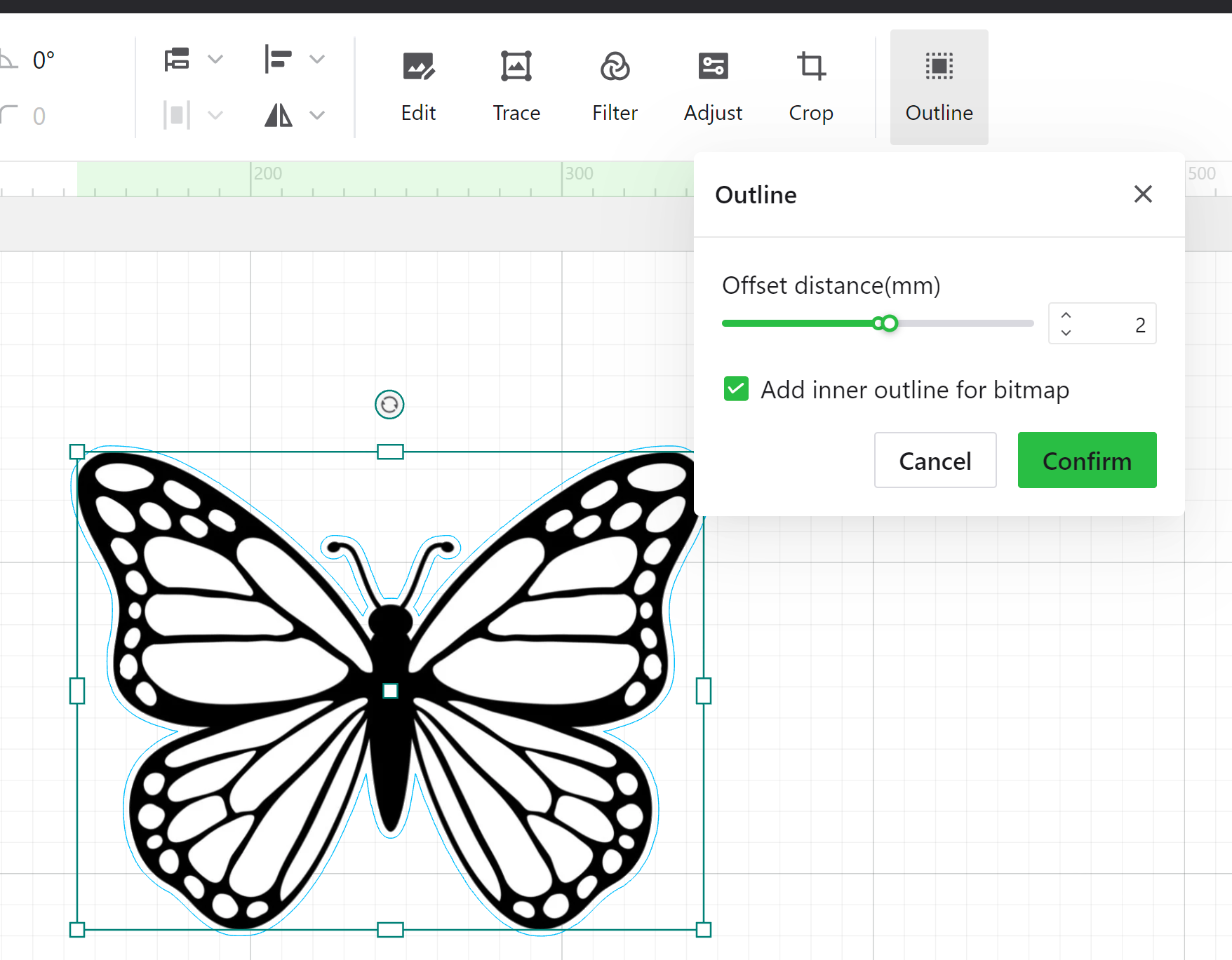
- Use the Outline Tool (this might say Offset instead of outline) to generate a cutting outline around the design. This ensures clean cuts after engraving.
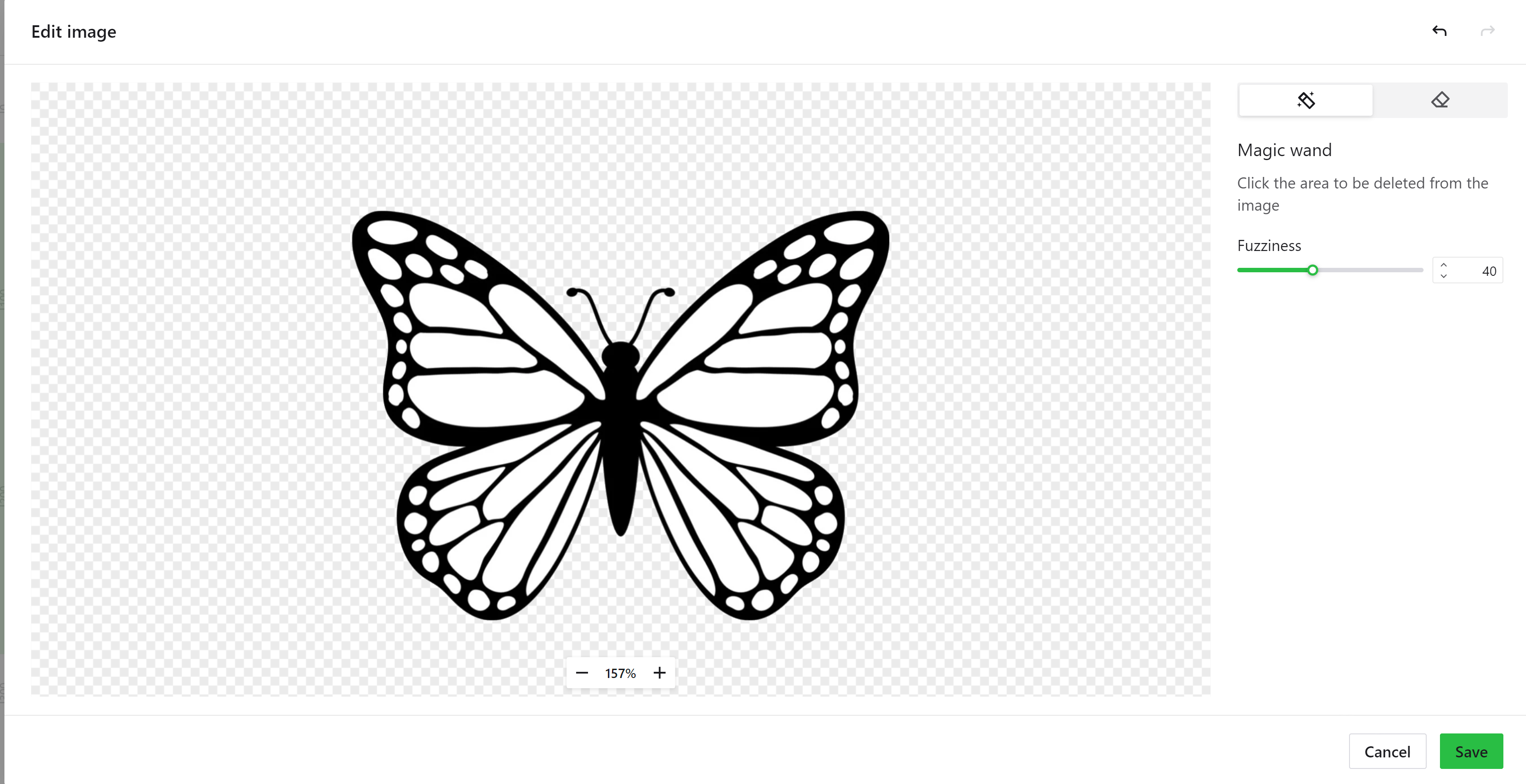
- If there is a white background around your image, you can use the edit tool and use the magic wand tool erase the white away.
- If your design is for engraving but also requires cutting around the engraved object:
- Ensure your design fits within the material's dimensions.
Setting Operation Types and Parameters (You may have to connect to the X-Tool physically & in the program to see some settings for the first time!)
Assign Operation Types & Settings:
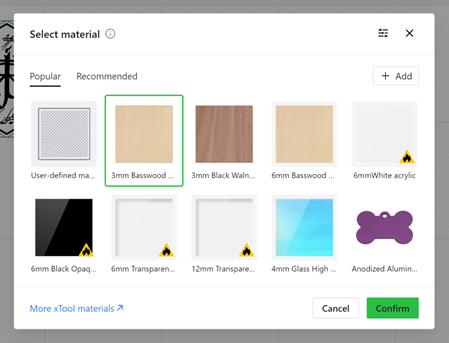
First, we will need to select what material we are cutting by clicking on ‘user defined material’ in the right-hand corner of the screen. For my coasters, I will be using 3mm basswood.
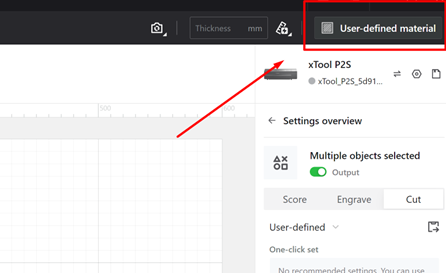
A window will appear where you can select your chosen material.
- Select parts of the design (you can either click on them on the grid, or on the right-hand bar of the program) and assign:
- Cut: For cutting out shapes or outlines.
For my coaster, I will be selecting my outlines on the right-hand side of the screen.
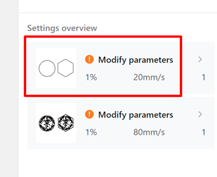
- Select parts of the design (you can either click on them on the grid, or on the right-hand bar of the program) and assign:
- Cut: For cutting out shapes or outlines.
For my coaster, I will be selecting my outlines on the right-hand side of the screen.
-
-
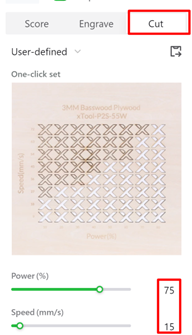
- Now you will want to change ‘score’ to ‘cut’. You will notice that some settings have been auto-filled. I will have to tweak these a bit for the coasters because the wood we have at school is slightly tougher, and will need a little extra strength to cut all the way through.
- Here are the recommended settings for our birch/basswood (Do NOT use these settings for other materials such as acrylic, they will require you to select the acrylic profile and test and tweak your own settings off of that. This is for the birch and basswood (light wood) only.):
-
-
- Engrave: For adding etched details or designs.
- Now go into your design settings
- Engrave: For adding etched details or designs.
-
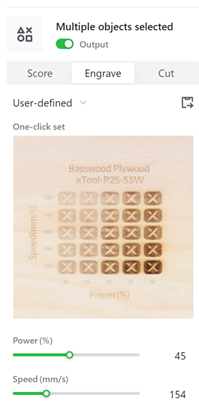
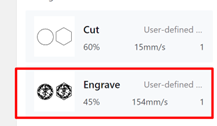
- You will want to select and make sure that this layer is set to ‘Engrave’. Here I wanted very dark outlines for mine, so I set my power to 45 and my speed to 154, but you can lower the power and set the speed higher to make lighter lines/engravings.
You can also use the one click set, and click a pre-made setting on the picture below that will give you an engraving similar to the square you chose.
- You will want to select and make sure that this layer is set to ‘Engrave’. Here I wanted very dark outlines for mine, so I set my power to 45 and my speed to 154, but you can lower the power and set the speed higher to make lighter lines/engravings.