
Laser Cutter - Intermediate Credential Guide
Before you can start: you must pass the Intermediate Laser Safety Quiz on Canvas.
From here on (after you get this credential), Mr. AlJeshi, staff (or a certified buddy) just needs to be somewhere in the room day-to-day, but for this certification cut specifically, Mr. AlJeshi will watch the whole thing and will not help you. That includes the design work: this is the first certification where you're building your own file, not just processing one handed to you.
Your Intermediate certification project is your name! Your own name, laser cut as one single continuous piece. You will design it yourself in Illustrator, then prep and cut it on your own. Below is an example:
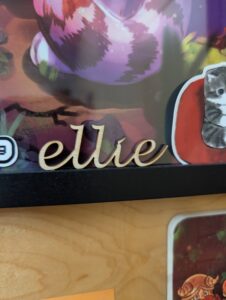
Designing Your Name Tag in Illustrator
- Open Illustrator and use the Text tool to type your name, all lowercase.
- Pick a font whose lowercase letters actually connect to each other. For example, a connected script/cursive font, not a regular typeface. This matters because the whole name has to laser cut as one single continuous piece. If any letters don't touch, that gap becomes a break, and your name falls apart into separate pieces when it's cut.
- Turn the text into one clean vector shape. This takes a few passes, not one:
- Object → Expand: converts the text into vector paths. Where letters overlap, you'll now have overlapping shapes underneath
- Object → Rasterize: flattens everything into a single image, which is what lets you clean up those overlaps next.
- Window → Image Trace, choose the High Fidelity Photo preset, then Object → Expand again — this traces the image back into one vector.
- Set the shape up so the laser reads it as an outline to cut, not an area to fill: select it, set Fill to None, and set Stroke to any visible color. No fill is what tells XTool Studio later to treat this as a Cut rather than an Engrave.
- Clean up the leftover shapes Image Trace creates:
- There's a bounding box around the whole design, delete it. You only want your name itself, not the box around it.
- Depending on your name, letters like a, e, o, g, b, d leave small enclosed shapes inside them. Don't delete these. Leave them as their own shape with Fill: None / Stroke set, same as the outline, so the laser cuts them out too and the letter actually looks right. Isolating these can take a few tries, especially anywhere letters overlap.
- File → Export As → SVG to save your finished outline.
Laser Cutting
- Read the Beginner Certification page if you need a refresher.
- Import your exported SVG into XTool Studio and confirm the device is set to XTool P3.
- Check that your shape imported as a Cut layer. If it shows up as Engrave instead.
- Confirm your material
- Confirm air assist is on, preview the job with Process, then run it.
- Watch the entire cut.
- Ensure that the machine and ventilation are turned off afterwards
