
Preparing & Using the X-Tool P2s
Turning the Laser Cutter On
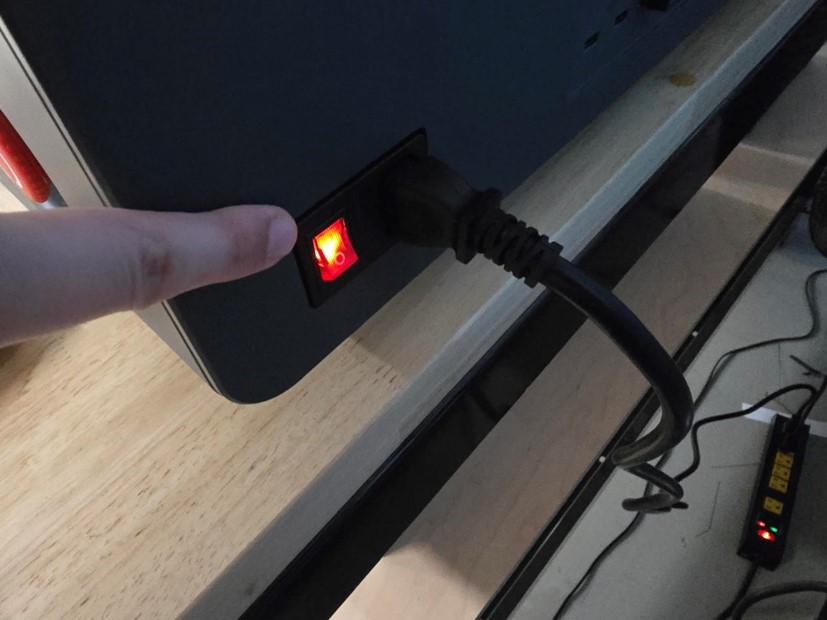
- On the back of the laser cutter, there is an on/off switch. Press the top of the switch to turn the laser cutter on (and the bottom to turn it back off).
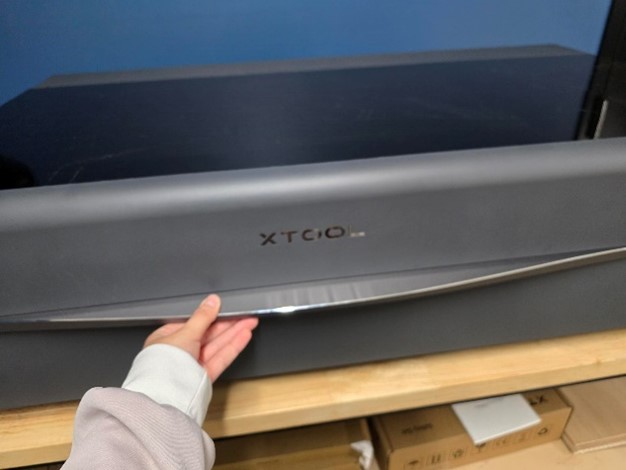
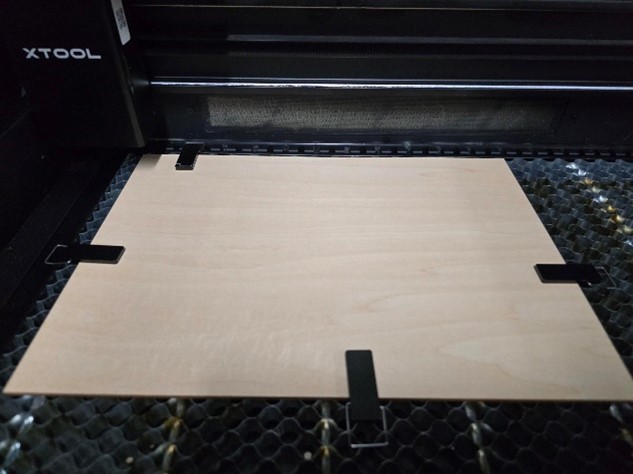
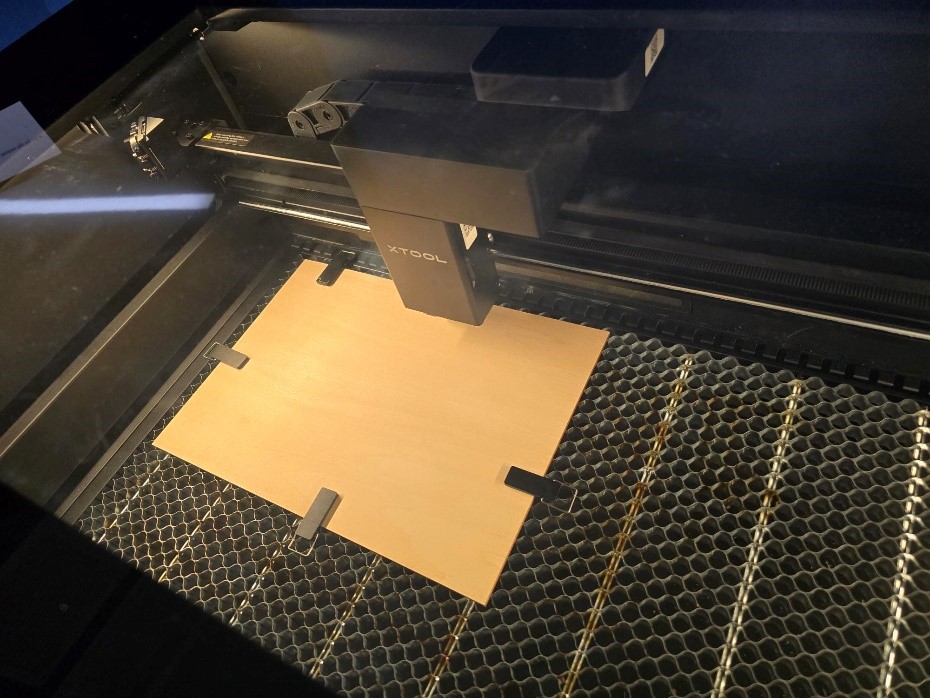
- Open the lid of the laser cutter and place the wood you wish to use inside of it. There will be magnetic clips to hold down each side of the wood. I recommend using all 4 and clipping each side down so it does not move during the cutting process.
Connecting & Cutting
-
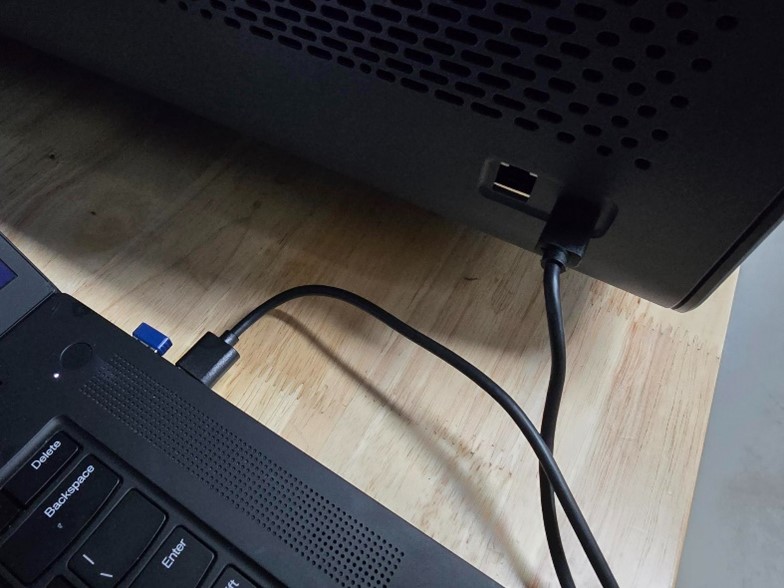
- Connect the laptop to the machine using the USB cable (alternatively send your design to the loaner, which already has the program and settings set up on it).
- Now, click on the top right corner (this may not say XTool P2S, but the location should be the same).
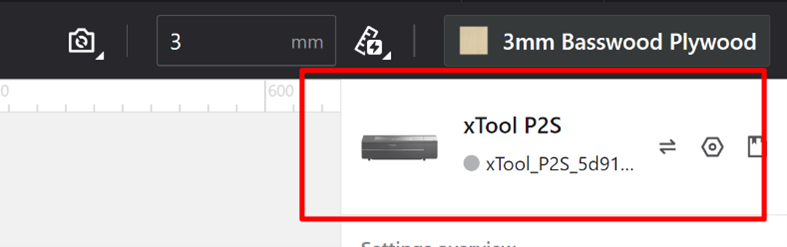
- It will open this screen where you can connect a device.
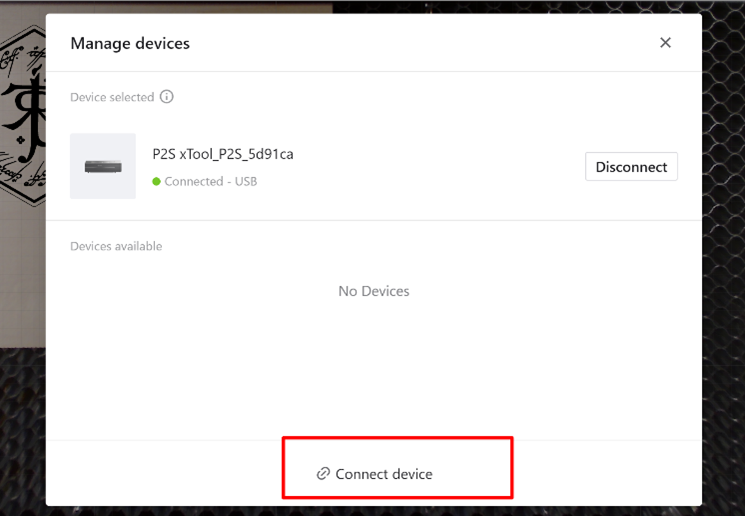
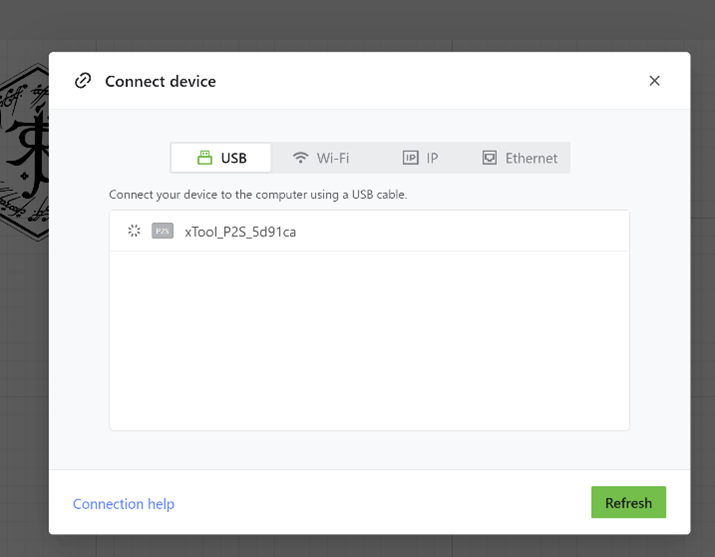
- After a brief loading period, the xTool will appear here. If it does not, try restarting the device and the program (or your laptop as well) and repeating the steps.
- Click on it and you will connect to the laser cutter.
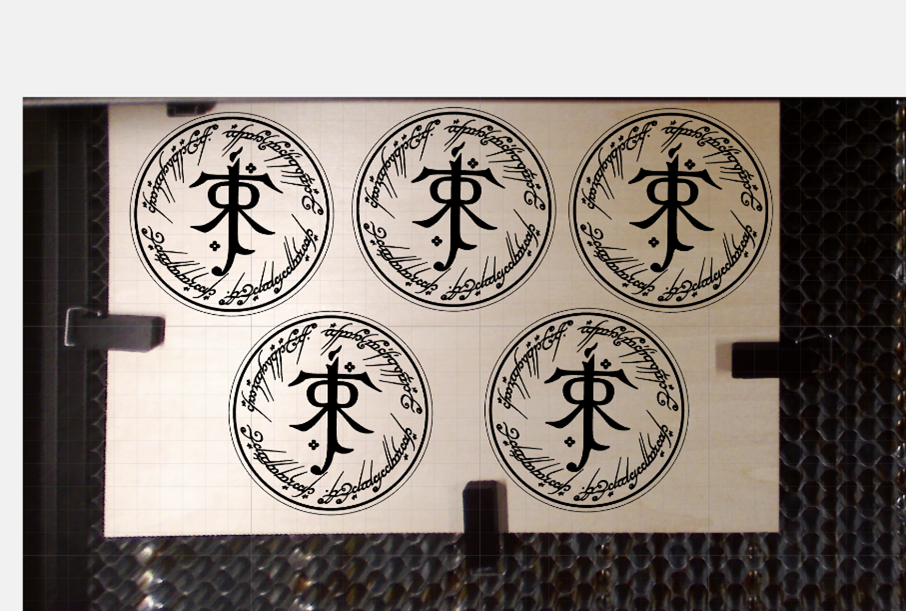
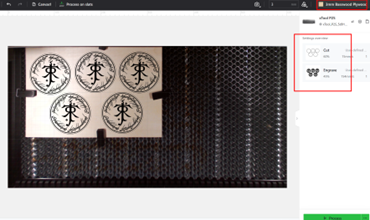
- You will now be able to see a snapshot of your wood, and place your designs exactly where you want it on the wood. Please try to maximize your space and waste as little wood as possible.As I used a small piece of scrap wood, the clips got in the way, so I put my pieces as close together as I could, but with a larger piece of wood you can get your designs even closer than this (just leave a teensy bit of space between).
- Double check that your cut, engrave, and plywood settings from earlier are still set.
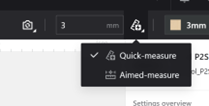
- You will also want to use the quick measure tool (aimed is ok if quick doesn’t work) so that the laser cutter can gauge the distance the wood is at.
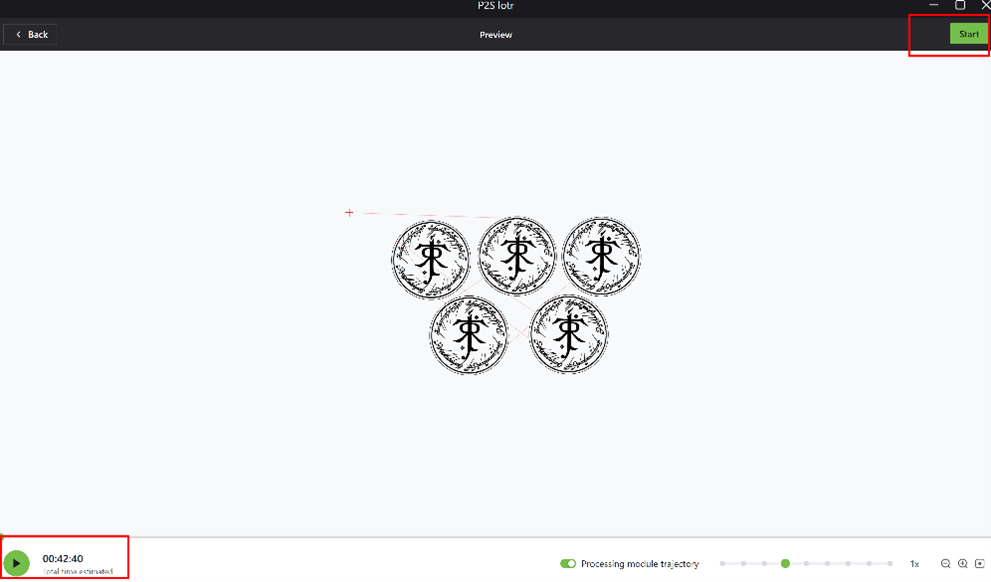
- Now, you can click on the ‘process’ button. This will show you a preview of the process. You can scroll through it to see how the laser will cut, and the paths it will take. You can also see how long your cut will take. Please remember that you MUST be present to watch your cut for the entire length of time that the laser is on.
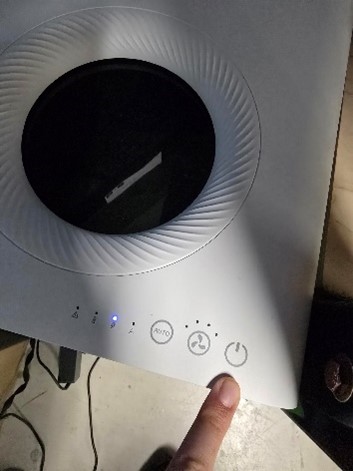
- Please make sure to turn on the air filter before pushing the start button. If the laser cutter is not on this air filter and connected to room air instead, there are two switches on the walls you must turn on. One says "Room Air" and the other says "Epilogue". Please turn both switches on (and back off when you are done).
- Once you are ready to cut, click the start button in the upper right corner of the program.
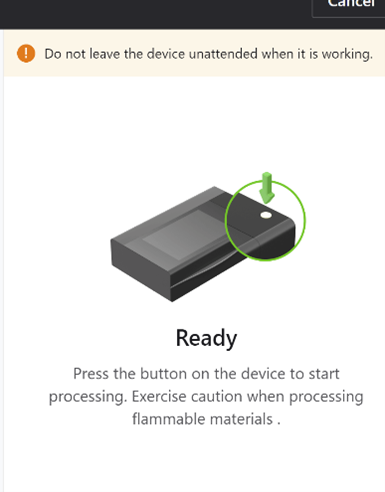
- Then, click the start button on the physical machine.
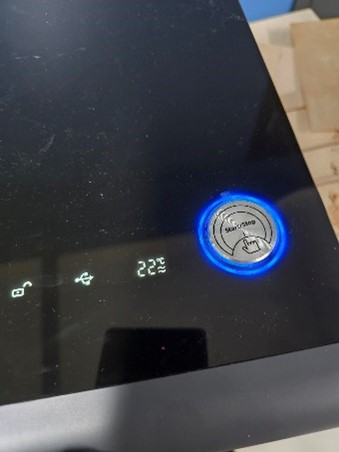
- Your laser will now start cutting. Please remember to watch your cut the entire time to make sure that your cut/engraving is correctly processed, and that your material does not on catch fire.
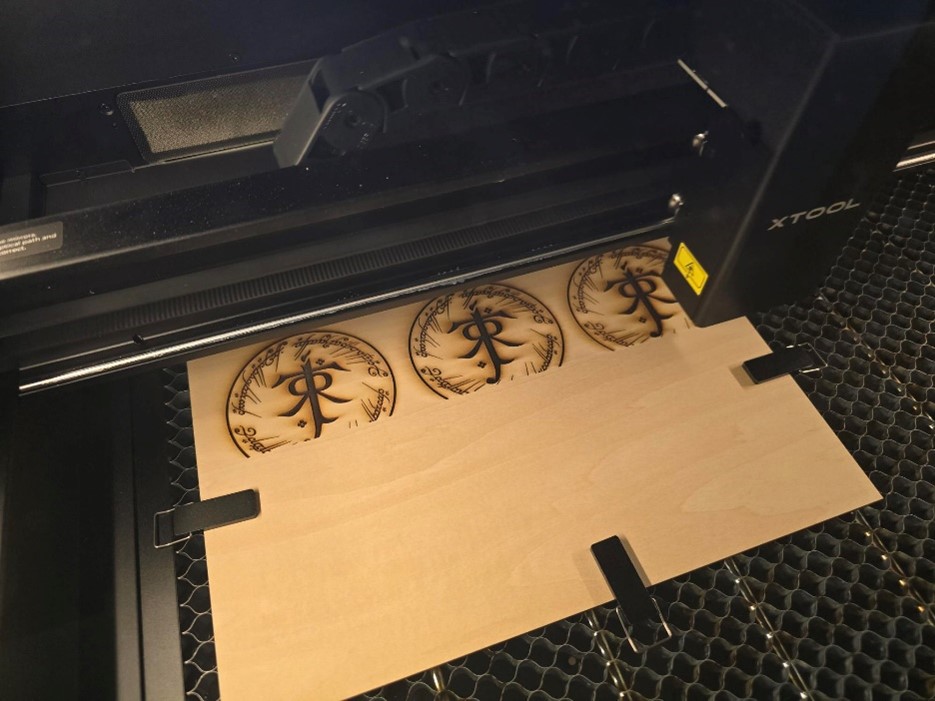
- Once you are finished, please turn the laser and air filter back off. Thank you!