Using the 3D Printer
- Turn on the 3D printer using a switch on the right side of the frame next to the power cable.
- Once the 3D printer is turned on, press the main knob to enter the menu.
- Make sure there is enough filament (the plastic string thing) to perform your print.
- If there is not enough filament or you want to use a different color, you will have to replace it
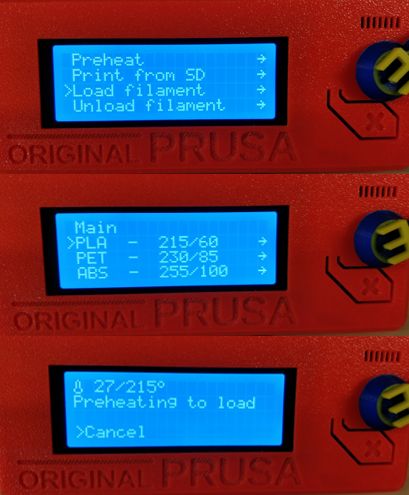
- Go to the Unload filament menu
- Select the type of filament you are removing (it should tell you on the filament roll)
- Wait for the printer to heat up
- Remove filament (just pull it out of the top of the extruder, and hold the extruder in place with your other hand)
- After the old filament is removed, use a pair of wire cutters (located in the tools bin next to the 3D printers to cut off the tip of the old filament so the tip is flat and not stringy
- Go to the Load filament menu
- Put the new filament you want to use on the rack above the printer
- Select the type of filament you are using (it should tell you on the filament roll), between PLA, ABS, FLEX, etc.
- Insert the filament into the hole at the top of the extruder (the part of the printer that moves around)
- Wait for the printer to heat up
- Confirm that the color of the filament is correct and is extruding
- If it is not extruding, keep selecting 'no' until you see the new filament extrude from the nozzle.
- When the new filament does extrude select 'yes'
- If after you say yes and you get some weird instruction (e.g. unload filament) just reset the printer by pressing the orange x button located below the knob
- You are ready to start printing
- Go to the Print from SD menu
- Select the file that you want to print
- Wait for the printer to heat up and print
- Watch the printer for 20 minutes to make sure that nothing goes wrong. If something does go wrong, press the knob and rotate down to "stop print".
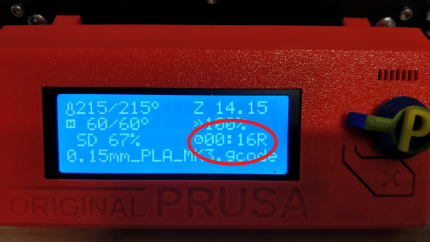
In this image, you can see how long the print has been going. If the number has an R after it, that means it is showing time remaining.
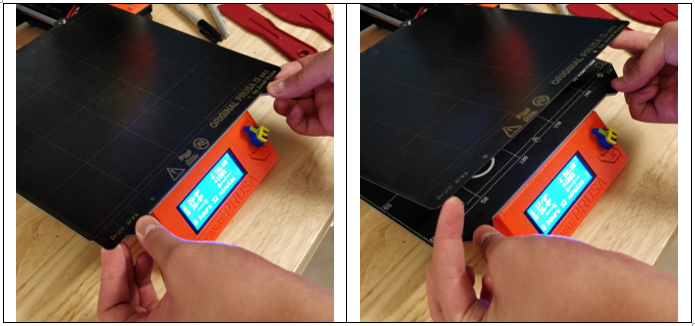
- When it is done printing, remove your item. You can do this by lifting the build plate off of the printer by putting your thumbs on the designated thumb holds and lifting upwards with your fingers. Be sure to wait for it to cool before doing this, since it may be hot.