
Saving and Sending to Illustrator
When you have your design;
- Save it as an illustrator file (File --> Save As --> Name your file and click save). That way you will be able to go back and edit your project if needed.
- Then you will need to save it as a PDF. Go to File --> Save As and under file type, select "PDF" and save it again.
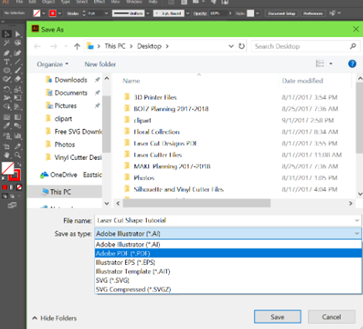
You will then need to save it to the Laser Cutter Dropbox so it will show up on the computer the laser cutters are attached to.
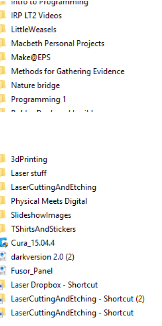
- Open the Students drive, find the file called "MAKE@EPS," then open the folder called "LaserCuttingAndEtching"
Note, you need to be on the EPS school wifi to access this share :
\\drives\Students\Make@EPS\LaserCuttingAndEtching
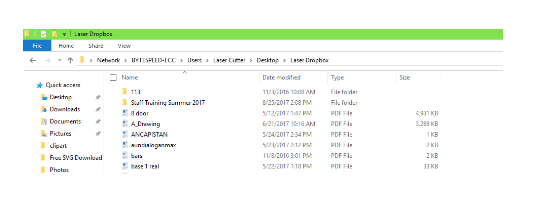
- Save your PDF in this Dropbox (make sure you PDF file has your name in the start of the filename), and you're ready to go cut your project!
IMPORTANT (Before Cutting)
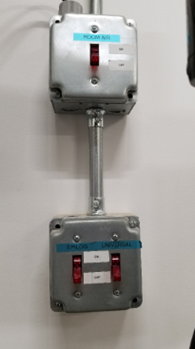
Before using the Universal laser cutter, make sure that the appropriate fan is turned on. The switches for the fans are located behind the computer screen.
- Universal Fan: On
- The laser cutter specific fans prevent your materials from catching fire.
- Epilog Fan: Off
- Room Air: Off
- Do not turn on the Room Air switch unless there is smoke or dust in the room and you need to ventilate it.
- You also have to turn on an air compressor located under the table to the right of the Universal laser cutter. The on/off switch is on the left side of the compressor.
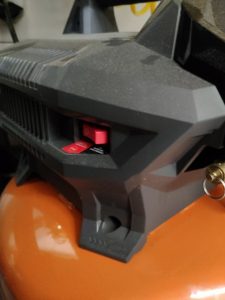
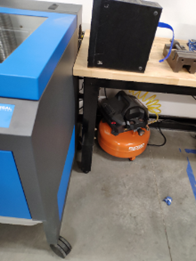
- Ensure that the air compressor and fans are on, and turn on the cutter using the switch on the right side of the machine.
- Locate your file the in the Laser DropBox folder on the Laser Cutter PC, and open it in Adobe Acrobat.
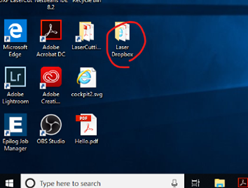
- In Adobe Acrobat click the print button (Ctrl + P).
- Select "PLS6.150D" as your printer.
- Make sure that that under Page Sizing & Handling, that the sizing is set to Actual Size.
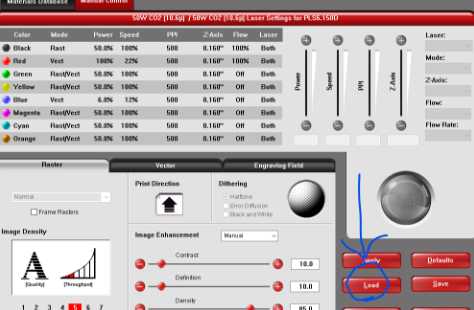
- Click the Properties button next to the printer selection box to open the properties menu.
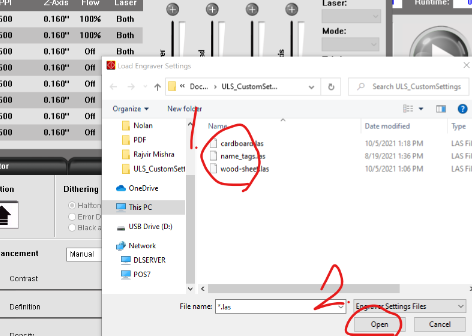
- Click 'Load' then in the pop up window select the file that matches the material you want to cut, and 'Open'.
9. Open the UCP app by clicking on the small red square with a diamond and a vertical line on the task bar.

- On the main screen, make sure the design that is displayed is your design. If it is not, close UCP, go back to Adobe Acrobat, click the print button (Ctrl + p), click print, and reopen UCP.
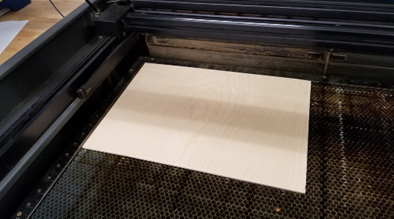
- Open the lid on the Universal laser cutter and put in a thin (about 1/8th inch) piece of cardboard/wood, aligning it to the top left corner. Then, close the lid.
12. In UCP on the right hand side, there should be a row of square buttons. First, press the Focus View button that looks like a triangle under a semi-circle. This allows you to move the tip of the laser around by clicking in the main window. Use this to make sure your design fits on the piece of material you are using. For example, use this tool to click on each of the corners of your design, look at where the laser head moves, and make sure the laser does not go off of the piece of material, or into the sides of the laser cutter bed.

- If you do need to adjust the location of your design, use the Relocate View button. This will allow you to drag your design anywhere in the main window, so use it to make sure your design cuts on your material.

- Once everything is positioned correctly, click the green go button to start cutting.
- Watch the laser cutter cut to make sure that nothing goes wrong. If something does go wrong, click the red pause button un UCP, or lift the lid on the laser cutter.
- Once the cut is done, remove your design, close the lid, and turn off the laser cutter, air compressor, Universal fan.
Common Mistakes
Error: When attempting to print to the Universal, you get the following error: "The printed document contains no data. Are the printer driver's RAST/VECT pen settings correct?"
Root Cause: In some cases the stroke data incorrectly gets replaced as fill in Adobe Illustrator. So the printer can't find the stroke data and cannot proceed
Fix:
- Save laser cut file as an SVG file
- Open the SVG file in notepad (or text editor of your choice)
- Near the top of the file (around the 6throw) look for something like .st0{fill:#FF0000;} (for you this may be .st1, .st2, etc.)
- Replace this text encased within the {} brackets with the following: fill:none;stroke:#FF0000;stroke-width:1.000000e-04;stroke-miterlimit:10;
- Save SVG file changes
- Convert SVG file back to PDF
Note: With this fix, the laser cutter will cut your red lines twice
Example: .st0{fill:#FF0000;} -> .st0{fill:none;stroke:#FF0000;stroke-width:1.000000e-04;stroke-miterlimit:10;}