Adobe Illustrator
The easiest way to prepare your file is through the use of Adobe Illustrator, which is the method that is supported through the technology team, as well as classes offered at EPS. It also has the highest quality tutorials available.
There are many tutorials to get started available at this link: https://creativecloud.adobe.com/learn/app/illustrator
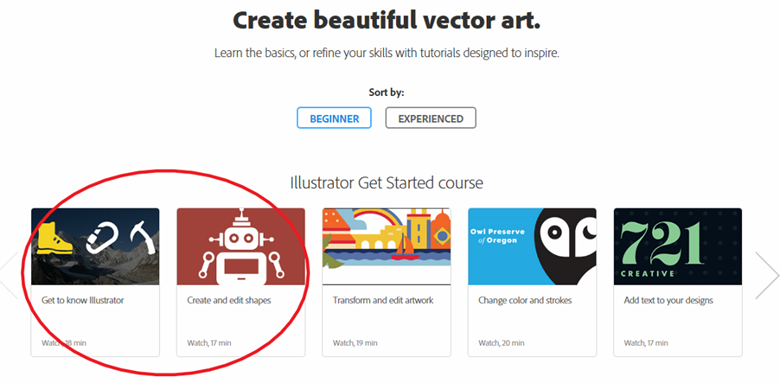
If you’ve never used Illustrator before, we recommend watching the ‘Get To Know Illustrator’ and ‘Create and Edit Shapes’ videos at the above link and following along.
We will also be walking you through the basic set-up of a cut file on the Universal Laser Cutter in this document.
Installing Adobe Illustrator
The easiest way to prepare your file is through the use of Adobe Illustrator, which is the method that is supported through the technology team, as well as classes offered at EPS. It also has the highest quality tutorials available.
There are many tutorials to get started available at this link: https://creativecloud.adobe.com/learn/app/illustrator
If you’ve never used Illustrator before, we recommend watching the ‘Get To Know Illustrator’ and ‘Create and Edit Shapes’ videos at the above link and following along.
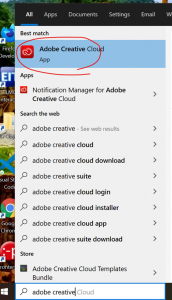
After you open it, in the sign in section, type your EPS email address and press enter. You will then be able to click ‘Enterprise ID’ and continue through the window that pops up with your regular school email account. If that doesn’t work, try using only your ‘username’ (your school email address without the “-@eastsideprep.org”.
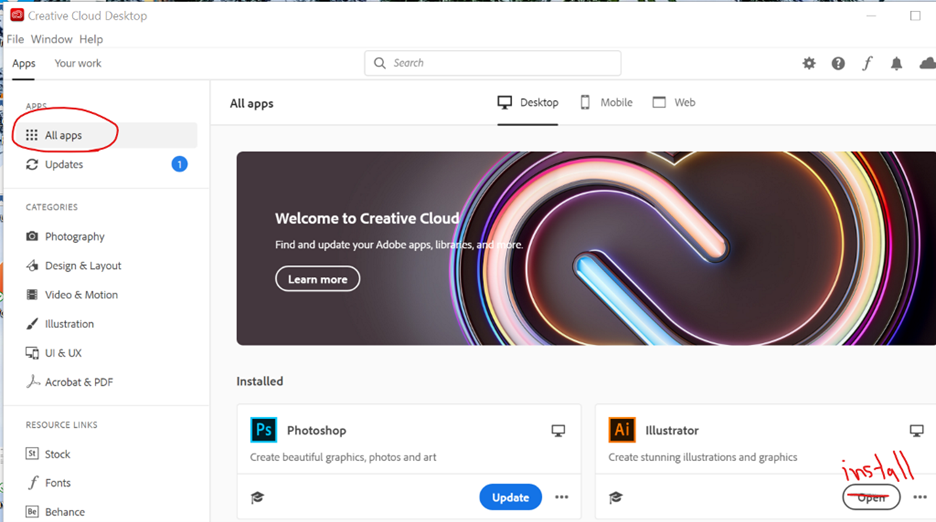
Once you’re in Creative Cloud, click on “apps” in the upper left. This is where you can install any Adobe app or service that EPS owns the license to. Click on “Install” next to illustrator. If it asks you to allow this app to make changes to this device, type in your email and password and click ‘yes’ to proceed.