Configuring Colour Settings
- If you are printing in multi-color, add as many colours as you need using the + button under filament. The numbers on the colours in OrcaSlicer correspond to the slot on the physical AMS (multicolour) unit.
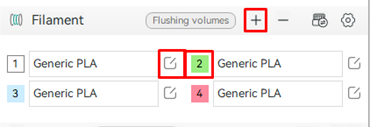
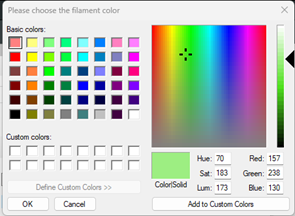
2. Edit the colour by clicking on the numbered filament swatch (as shown above). Choose the filament colour you will be using in that slot, then click ‘ok’.
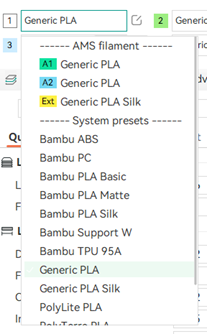
3. After, click on the edit button next to the filament name to configure your filament settings. Make sure you choose the correct type of filament for each slot, or your print will fail. If you do not see a filament you wish to use listed, click on the gear symbol on the filament bar to add more.
4. When this is done, click on the ‘Flushing Volumes’ button in the filament bar.
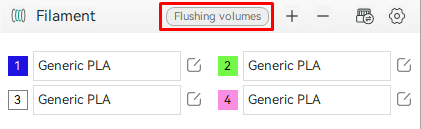
5. When this is done, click on the ‘Flushing Volumes’ button in the filament bar.
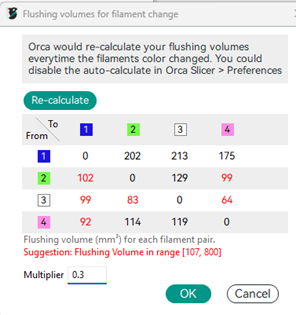
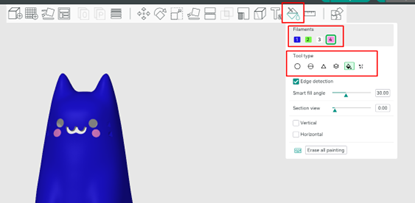
7. Colour your model using the paint bucket tool, if needed. You can select a filament and tool type, then click on your model to use it.
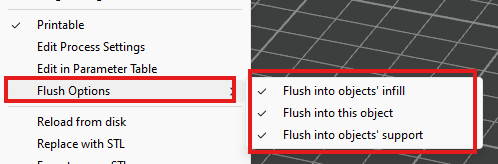
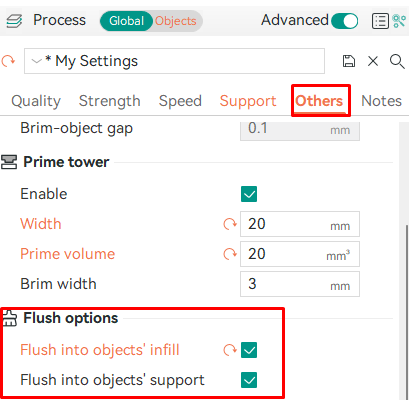
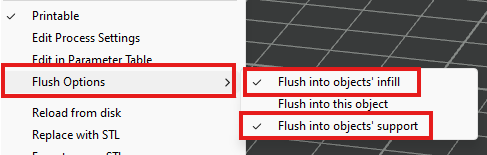
8. You will notice a large purge tower appear behind your object. This is wasteful! Below we will configure our print to have less waste. First, please click on the ‘others’ tab in process, and decrease the size of your prime tower. Make sure both of the ‘Flush Options’ are checked off.
9. Now, right click on your model, and select ‘Flush into this Object’s infill, and ‘Flush into Object’s support’. Do not select ‘Flush Into this Object. Do not select ‘Flush into Object’s Infill’ if your filament colour is either very transparent, or very light.
10. Next, add your choice of purge object to the plate (an STL, where the colours do not matter), and configure the size, scale, and position on the bed plate. You should make it around the same height as the model that is on your plate, as this will be our new purge object.
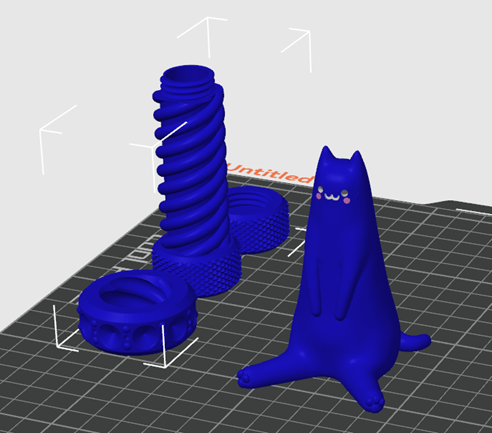
11. Right click on your new object, and select ALL of the flush options for your object.